Algolia
Create a MESA connection to Algolia using your Application ID and Admin API key so workflows can update your Algolia search indexes.
Connection
Section titled “Connection”When you’re setting up your first workflow with Algolia, you will need to create a Connection in order to connect MESA with Algolia.
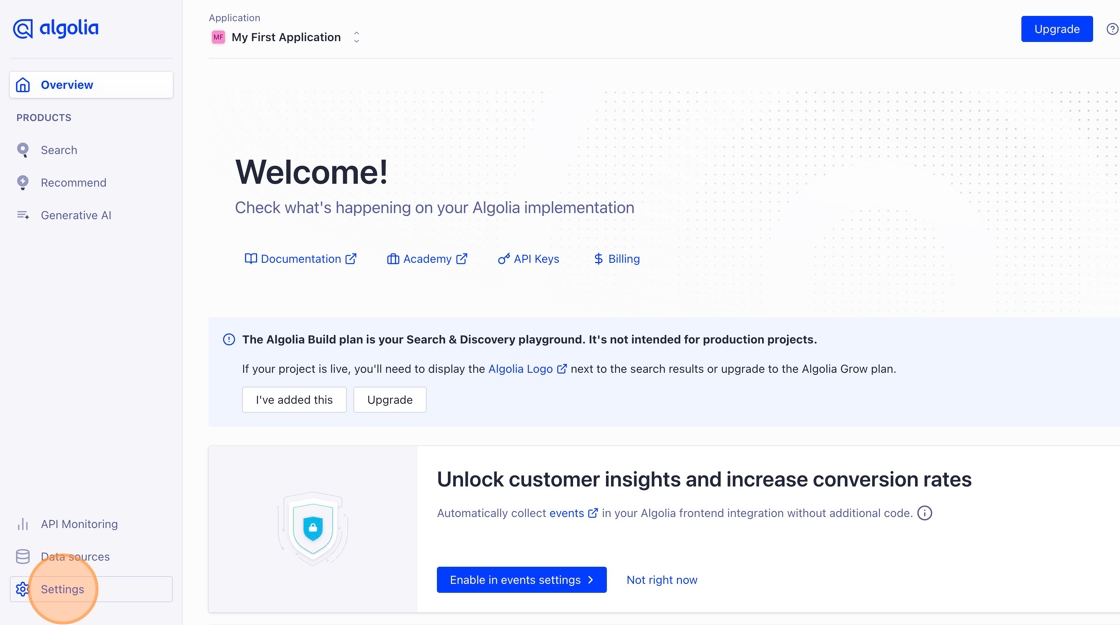
To create your connection, login to your Algolia account and navigate to Settings.
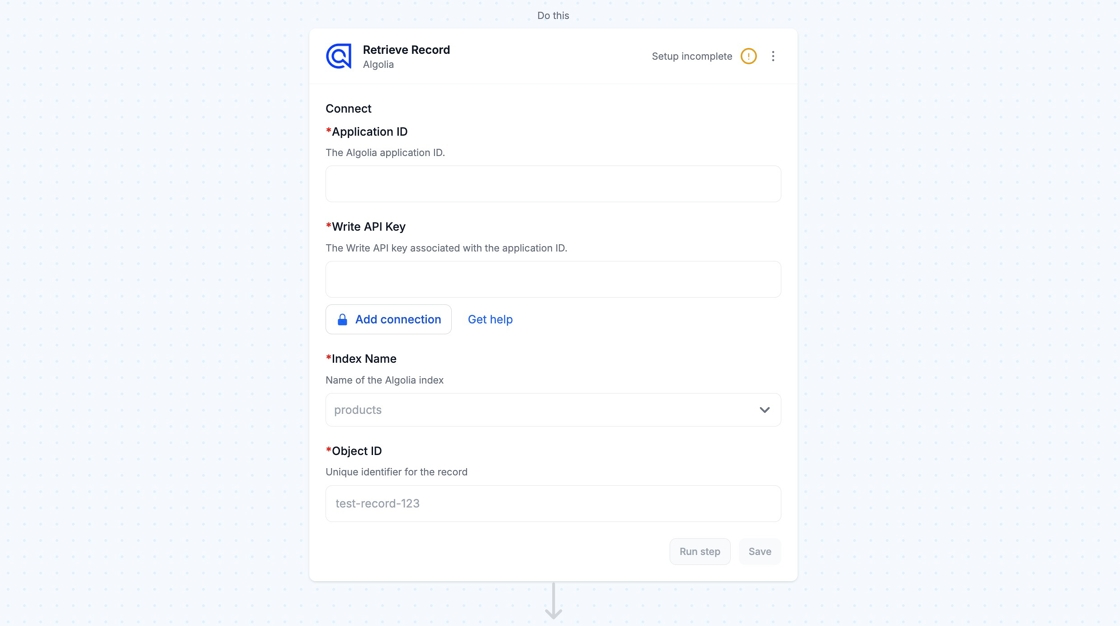
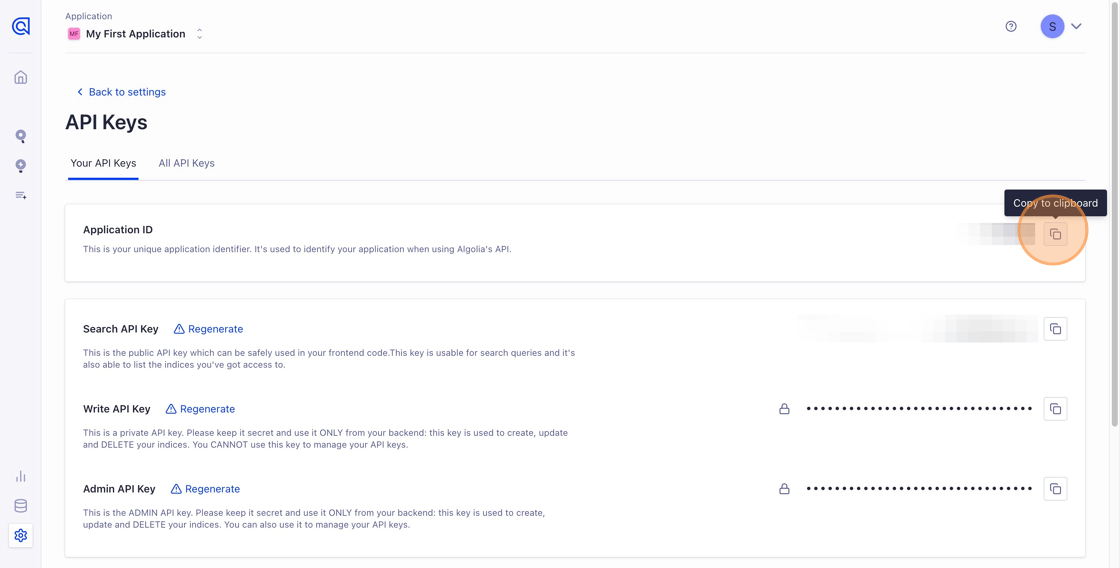
Then, select API Keys in the Team and Access section and copy your Application ID. Paste the Application ID in the Application ID field of your MESA Algolia step.
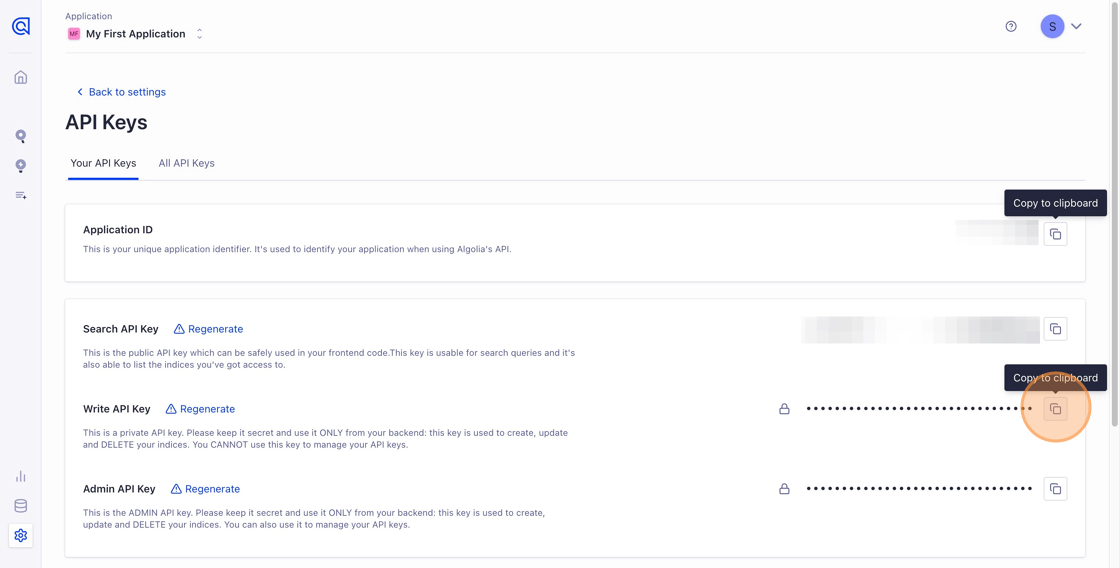
Next, copy the Write API Key and paste it in the Write API Key step of your MESA Algolia step.
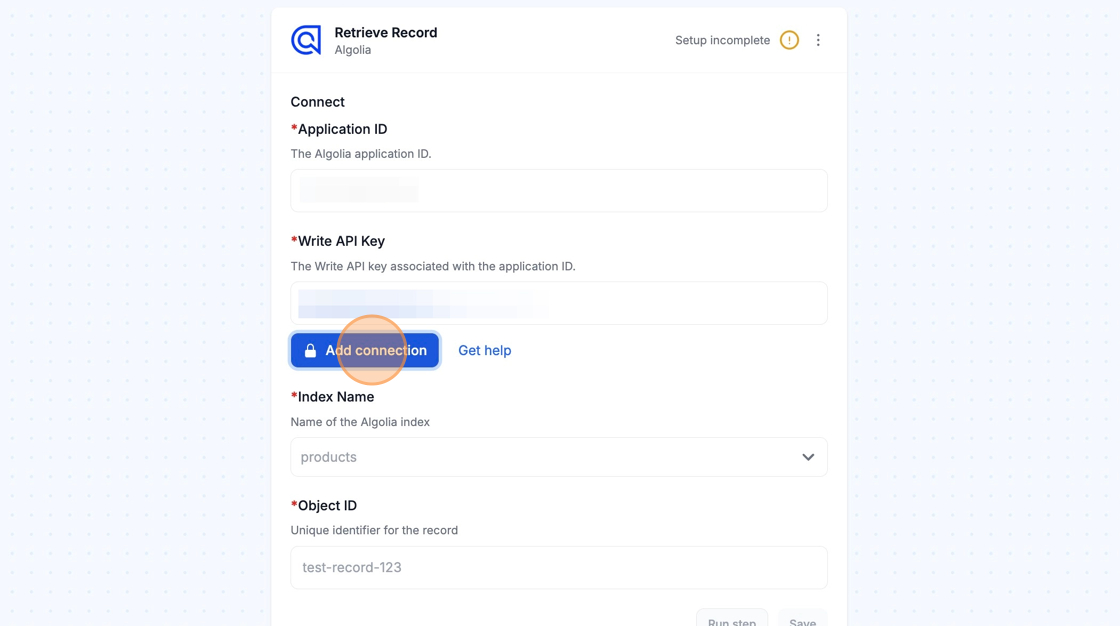
Once those fields are populated, click the Add connection button in your Algolia step to complete your connection.