
Export & Import Workflows
Export a MESA workflow as a zip file and import it into another Shopify store that has MESA installed, from the My workflows page menu options.
You can import and export workflows between multiple Shopify stores that have MESA installed.
Export
Section titled “Export”To export a workflow, go into the My workflows page and find the workflow that you would like to export. There are two ways to export workflows:
1. Click on the vertical three-dot icon on the right-hand side and click on Export. MESA will download a Zip folder onto your desktop.

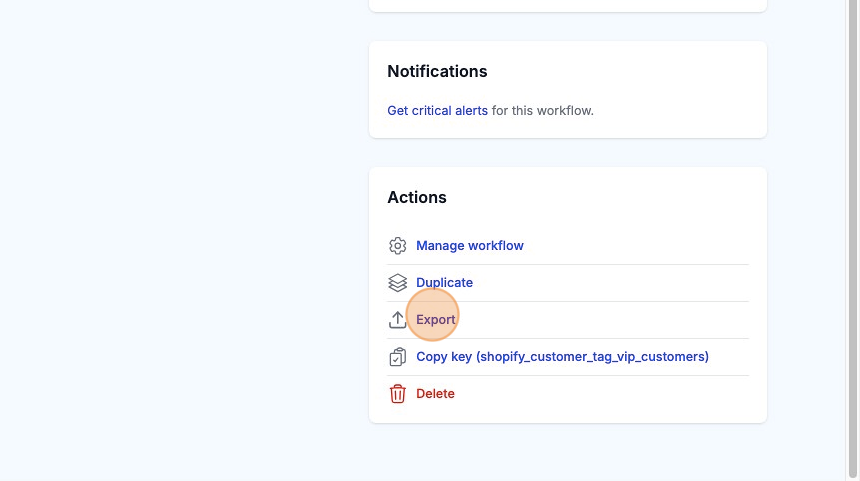
2. You can click into the workflow and click on the Dashboard tab. Scroll all the way down until you see Actions. Then, you can click on Export. MESA will download a Zip folder onto your desktop.
Import
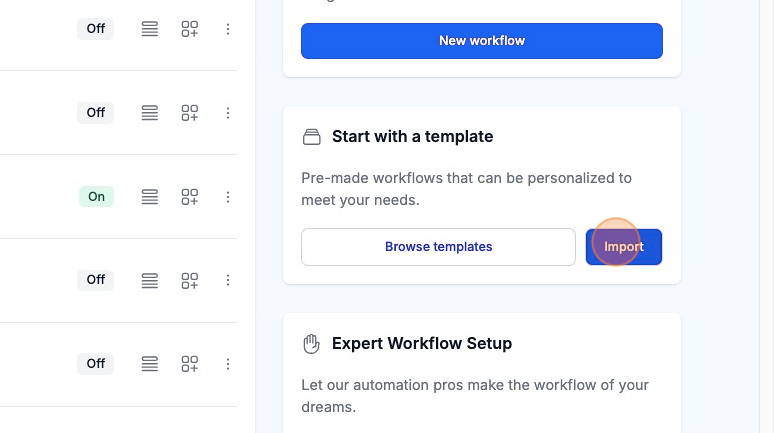
Section titled “Import”To import a workflow, you will need the Zip folder on your desktop. Then, head to the My workflows page. Click on the Import button under “Start with a template”.
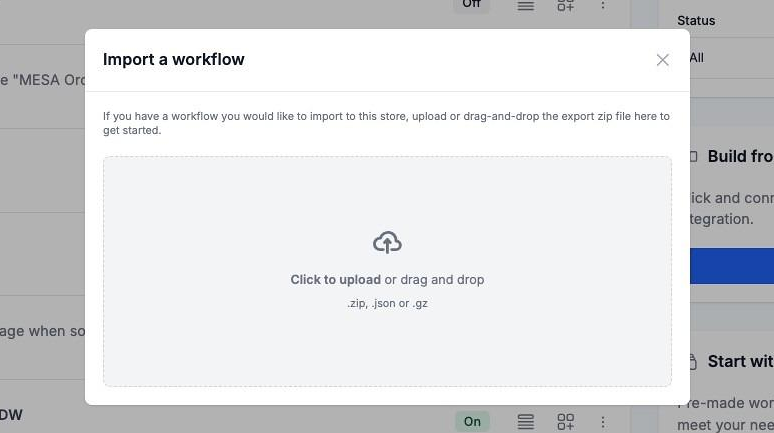
Drag the Zip folder into the dotted box or select the MESA Export Zip folder.
Then, click to install the workflow! 🎉