Filter
Stop a MESA workflow unless your conditions are met with the Filter tool, and learn how a Filter differs from a Path that continues down another branch.
The Filter tool is a step that lets you stop your workflow based on the conditions you set. A Filter is different than a Path because it controls whether or not your workflow continues. A Path continues the workflow for a different outcome based on the conditions set.
You should use a Filter in your workflow when there are certain reasons why you would want your workflow to stop or continue or to only act on specific items or instances.
Configure
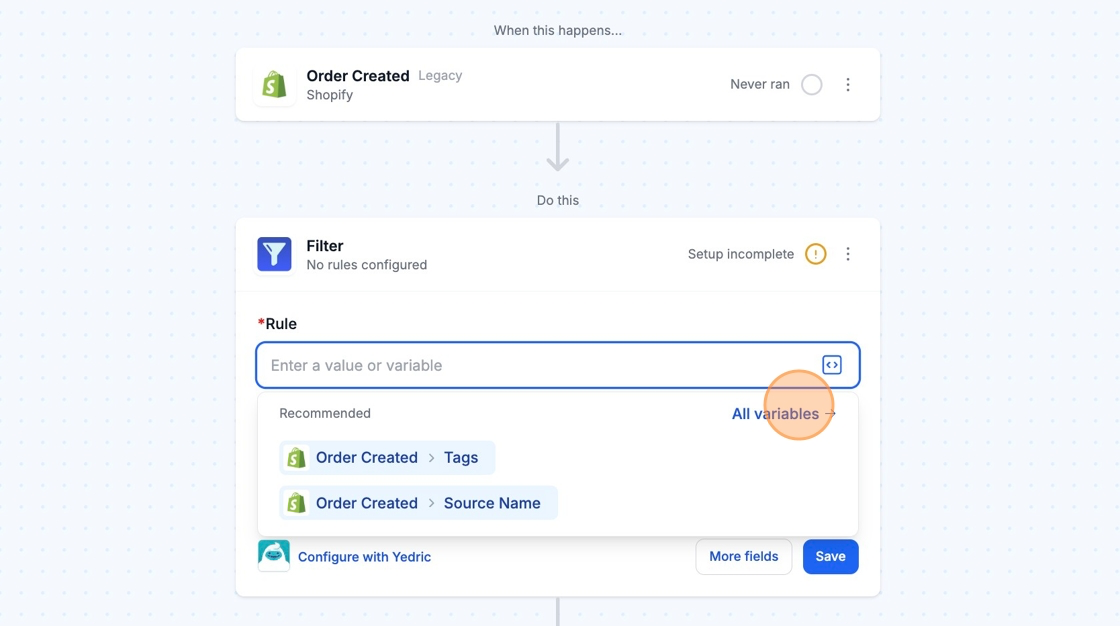
Section titled “Configure”When using the Filter tool, you will need to select the correct variables so that MESA can apply the filtering based on the data returned by the previous steps of your workflow.
When available, recommended variables will auto-populate in a dropdown menu, but you can always click to see the full list of variables available.
Examples of Conditions
Section titled “Examples of Conditions”The Filter tool has nineteen conditions you can use to compare values.
| Condition | Description | Example |
|---|---|---|
| Equals | A specified field matches an exact value provided | The number of line items in an order is equal to 2 |
| Does not equal | A specified field does not match an exact value provided | The number of line items in an order is not equal to 2 |
| Contains | A specified field includes a certain value within its content, regardless of its position in the text | An order's tags contains a "VIP" tag |
| Does not contain | A specified field does not include a certain value within its content, regardless of its position in the text | An order's tags does not contain a "VIP" tag |
| Is empty | A specified field has no data, meaning it is blank or null | An order's tags are empty |
| Is not empty | A specified field has data, meaning it is not blank or null | An order's tags are not empty |
| Is greater than | A specified field is numerically higher than a given value | A customer's order count is more than 2 |
| Is less than | A specified field is numerically lower than a given value | A customer's order count is less than 2 |
| Is less than or equal to | A specified field is numerically lower than or exactly equal to a given value | A customer's order count is less than or equal to 2 |
| Is greater than or equal to | A specified field is numerically higher than or exactly equal to a given value | A customer's order count is greater than or equal to 2 |
| Is in | A specified field matches any one of the values within a defined list or content | US is in a customer's country code address |
| Is not in | A specified field does not match any one of the values within a defined list or content | US is not in a customer's country code address |
| Starts with | A specified field value starts with a specific, or sequential, numbers or characters | A product's SKU starts with 123 |
| Does not start with | A specified field value does not start with a specific, or sequential, numbers or characters | A product's SKU does not start with 123 |
| Ends with | A specified field value ends with a specific, or sequential, numbers or characters | A product's SKU ends with XYZ |
| Does not end with | A specified field value does not end with a specific, or sequential, numbers or characters | A product's SKU does not end with XYZ |
| Is after [date/time] | A specified date/time value falls later than a given date or time | An order was created after 10/24/24 12:00AM |
| Is before [date/time] | A specified date/time value is earlier than a given date or time | An order was created before 10/24/24 12:00AM |
| Is on [date] | A specified date value matches exactly with a given date | An order was created on 10/24/24 |
When using dates or time frames as a condition or rule within the Filter step, you have the ability to use specific date formats.
Going Further
Section titled “Going Further”
Multiple rule sets
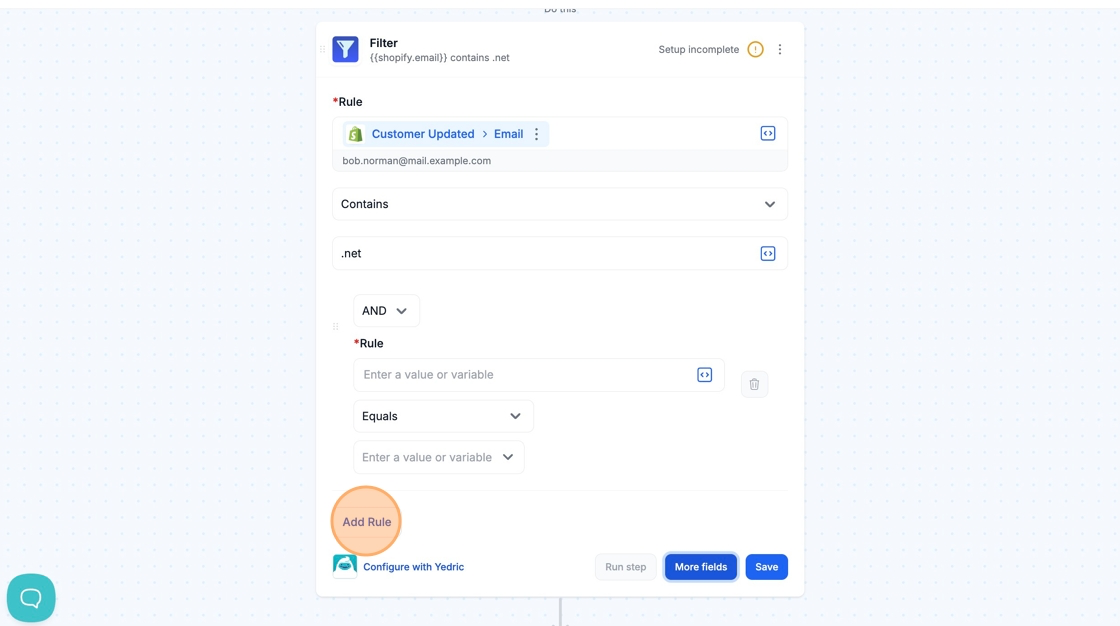
Section titled “Multiple rule sets”You can apply additional rules by clicking the More fields button, then selecting the Additional Rules checkbox.
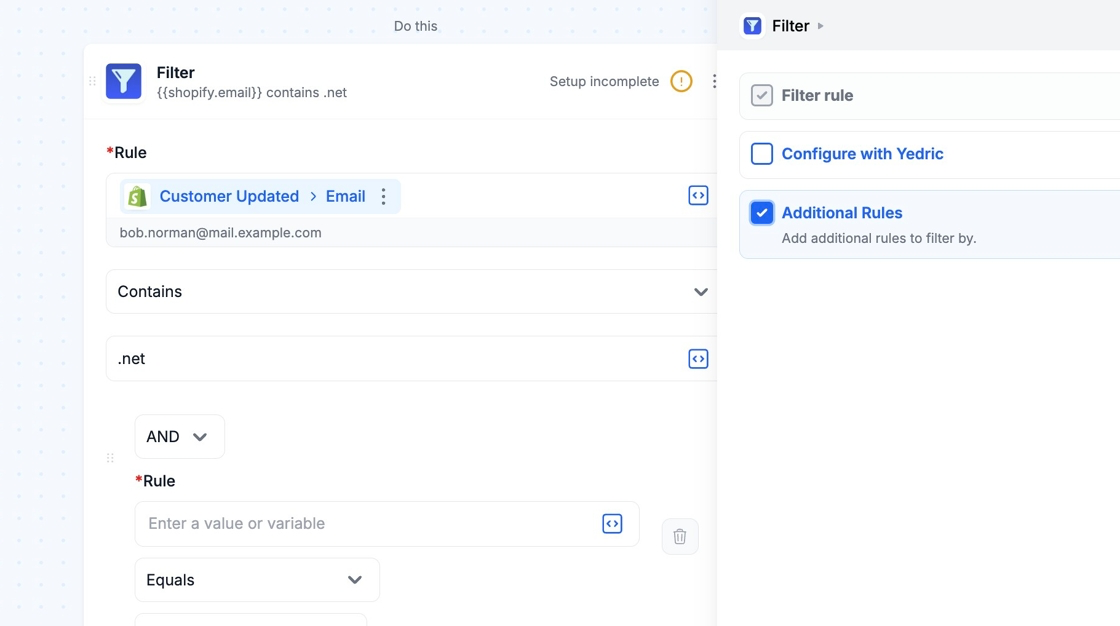
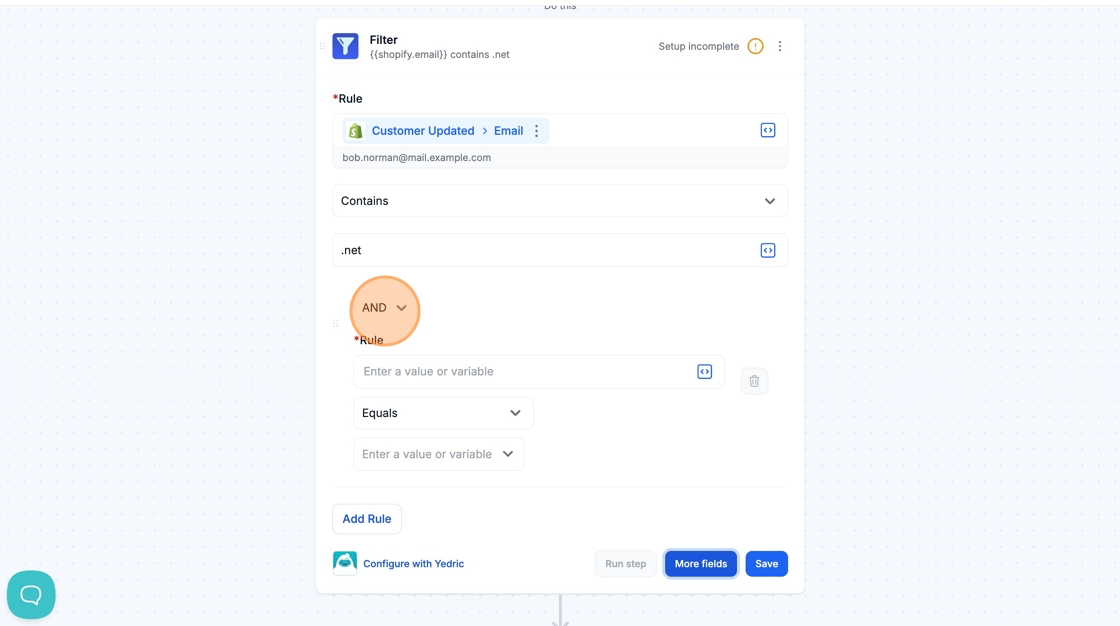
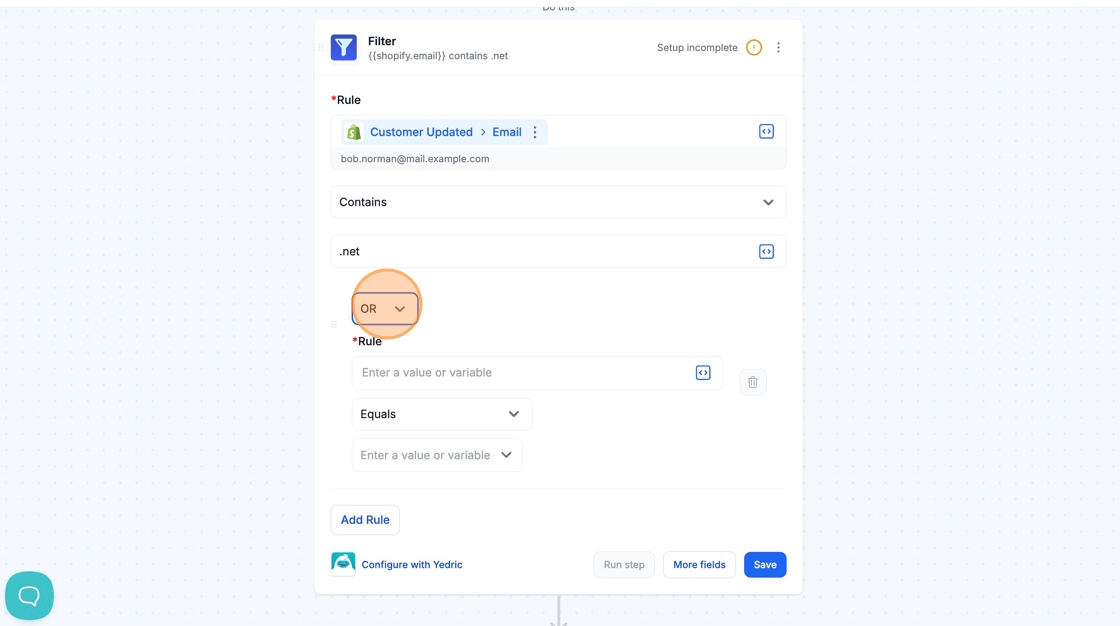
Define if all rules need to match (AND), or if only one of your rules needs to match (OR). You can add an unlimited number of rule sets by clicking the Add Rule button to build complex comparison logic.
Technical Notes
Section titled “Technical Notes”
Advanced rule sets
Section titled “Advanced rule sets”If you use a combination of AND or OR operators, the logic will read from top to bottom. For example, a AND b OR c AND d will be executed as ((a && b) || c) && d.
AND Filter will only proceed if both conditions are true.
Section titled “AND Filter will only proceed if both conditions are true.”- Example: Order created is more than $5 AND it is the customer’s first order.
- Action: If both conditions are met, the task continues. Otherwise, it stops.
OR Filter will proceed if at least one of the listed conditions is true
- Example: Order created is more than $5 OR it is the customer’s first order.
- Action: If one condition is met, the task continues. Otherwise, it stops.
For more fine-grained control, separate your AND comparisons and OR comparisons into separate Filter steps.
Special values
Section titled “Special values”The following values will be automatically cast from strings to their respective types:
truefalsenull
Creating a custom comparison
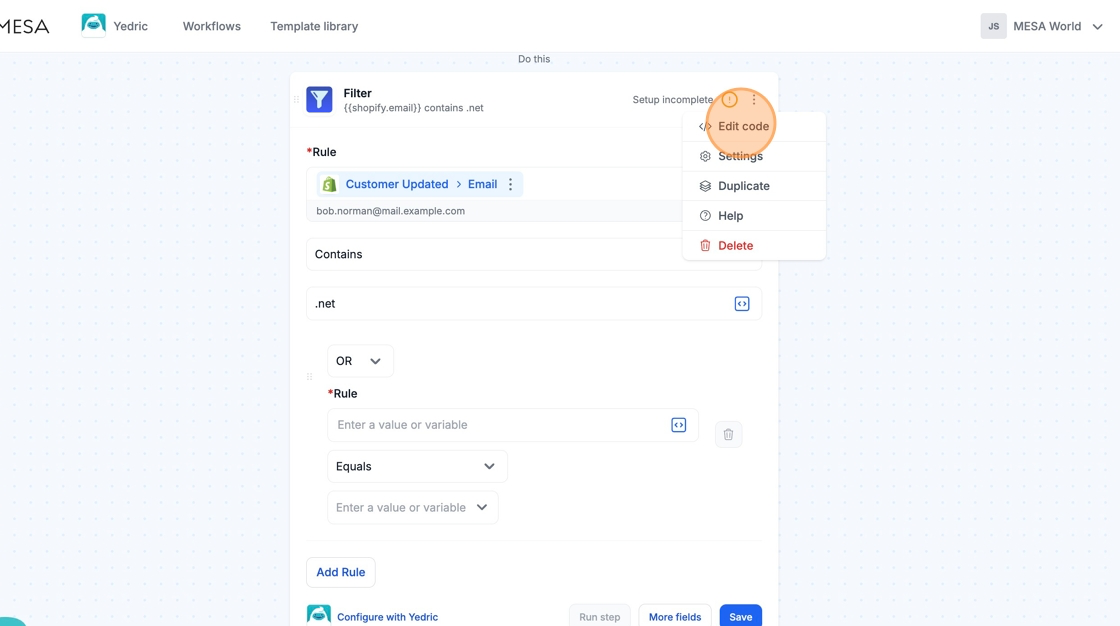
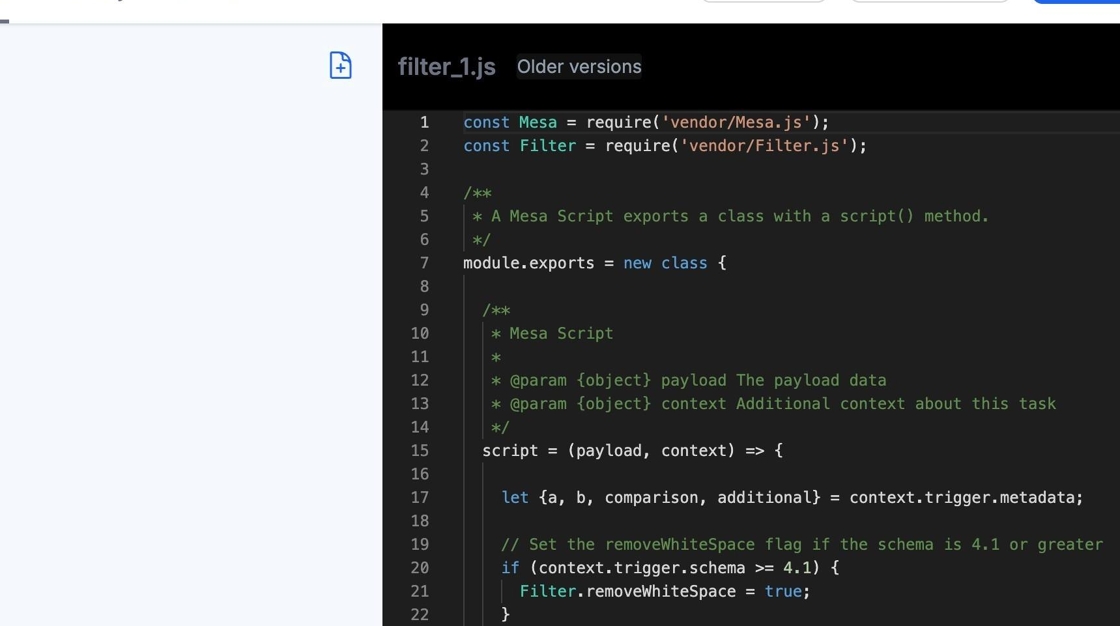
Section titled “Creating a custom comparison”You can further adjust the functionality of a Filter step by opening the step options (three vertical-dot icon) and clicking Edit code.