Tasks
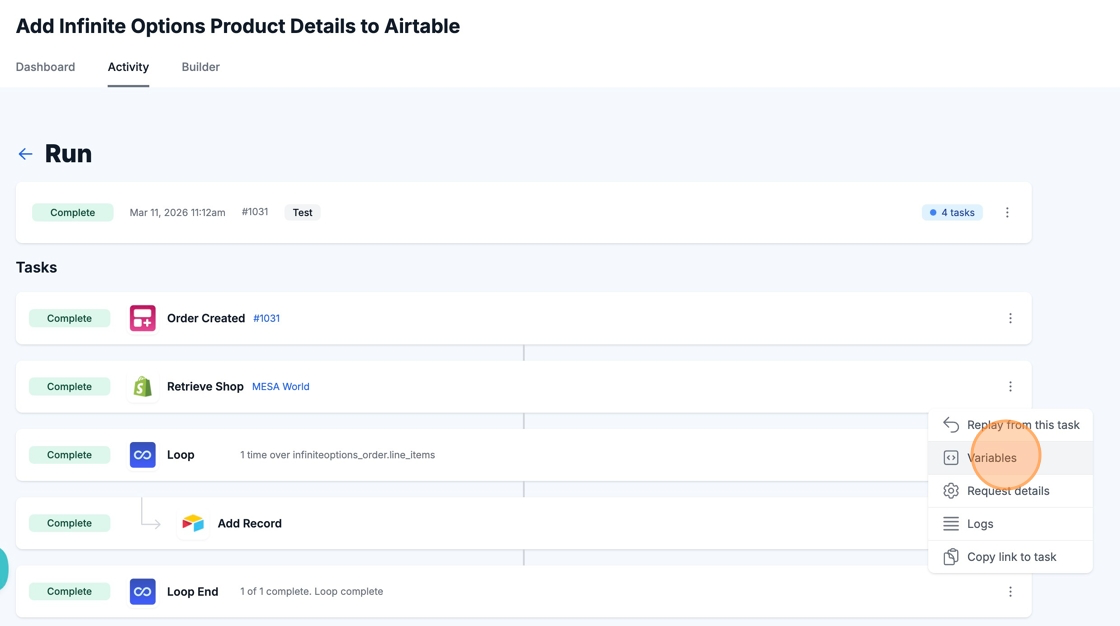
Explore MESA task options on the Activity tab, such as Replay from this task, Variables, Request Details, Logs and Copy link to task.
On the Activity tab, each automation task can have the following options: Replay from this task, Variables, Request Details, Logs, and Copy link to task. To find these task options, hover on the three dots on the right of the task and click to view the menu.
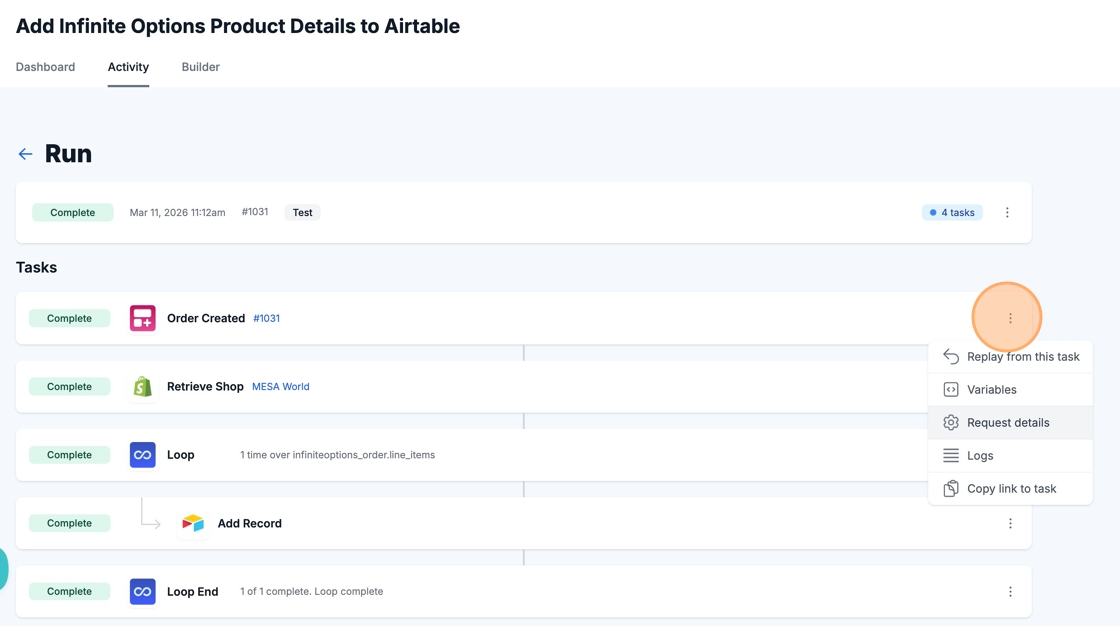
Replay from this task
Section titled “Replay from this task”Replaying from this task will copy the workflow’s configuration and data into a new task that immediately runs. This is helpful if there was an issue with your Trigger/Action setup, script logic, third-party API, or if there was a minor issue with your data.
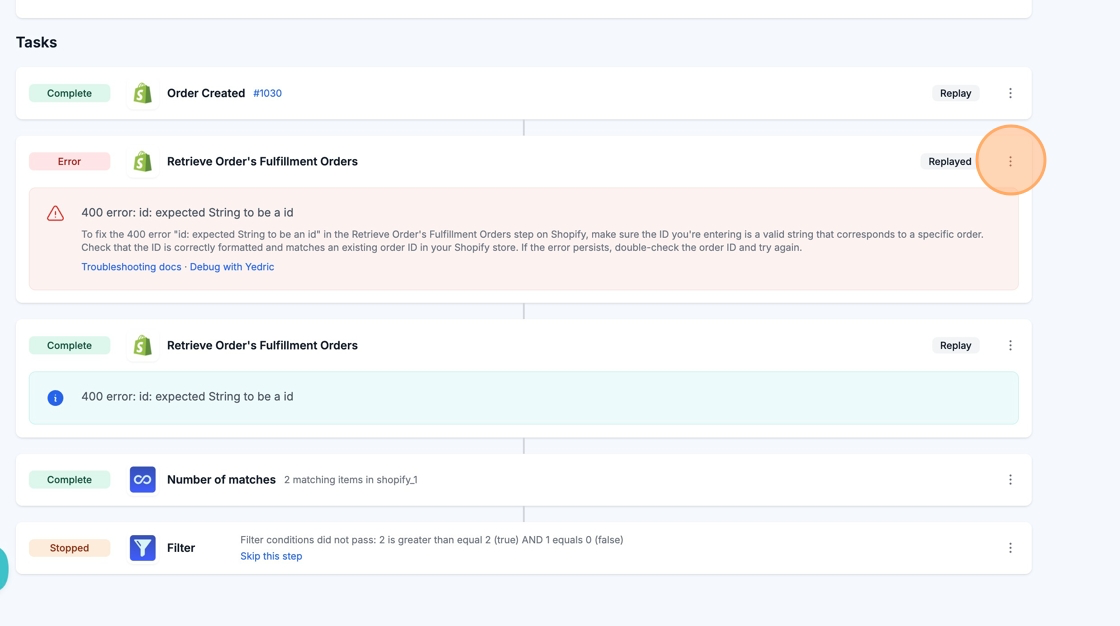
Replaying a task will continue executing the rest of your workflow steps that follow the replayed step.
Request Details
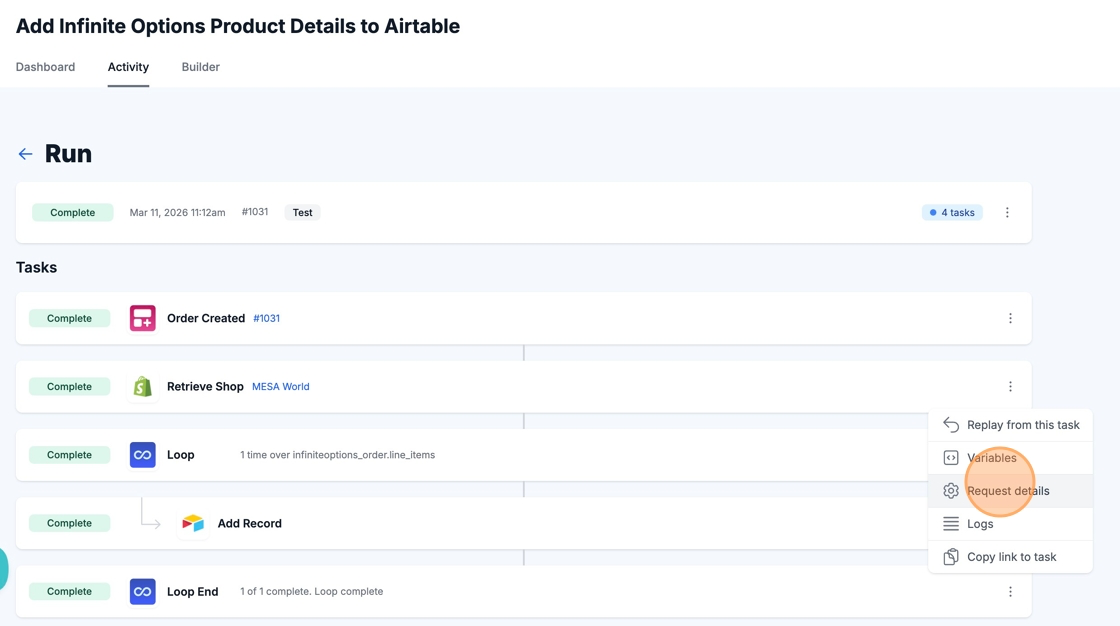
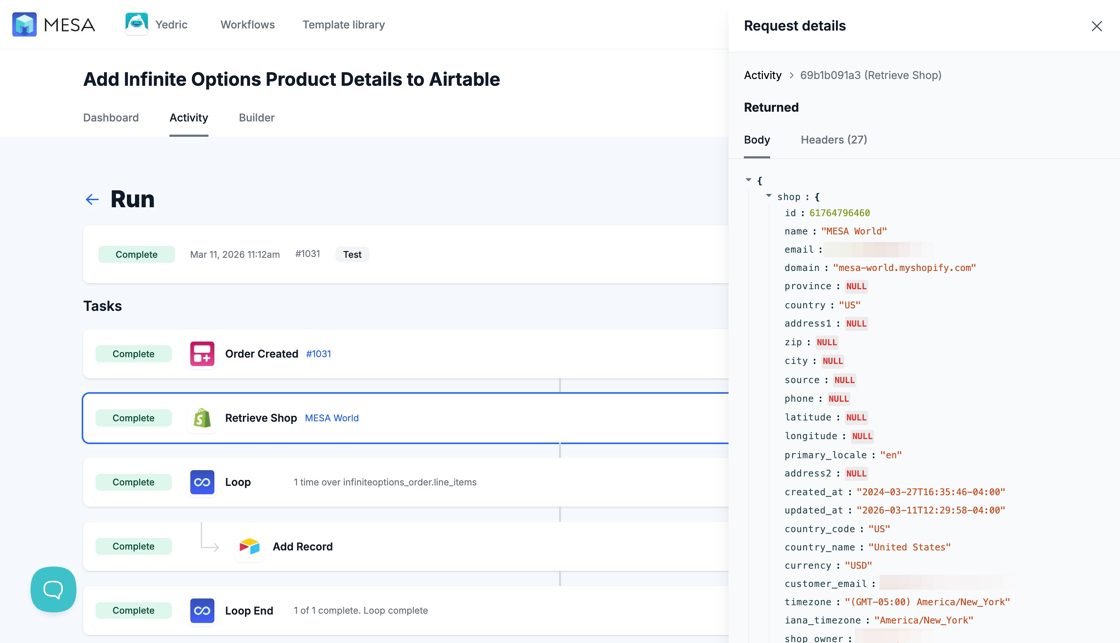
Section titled “Request Details”The Request Details of a task allows you to view the details of the data initiating the automation task.
Variables
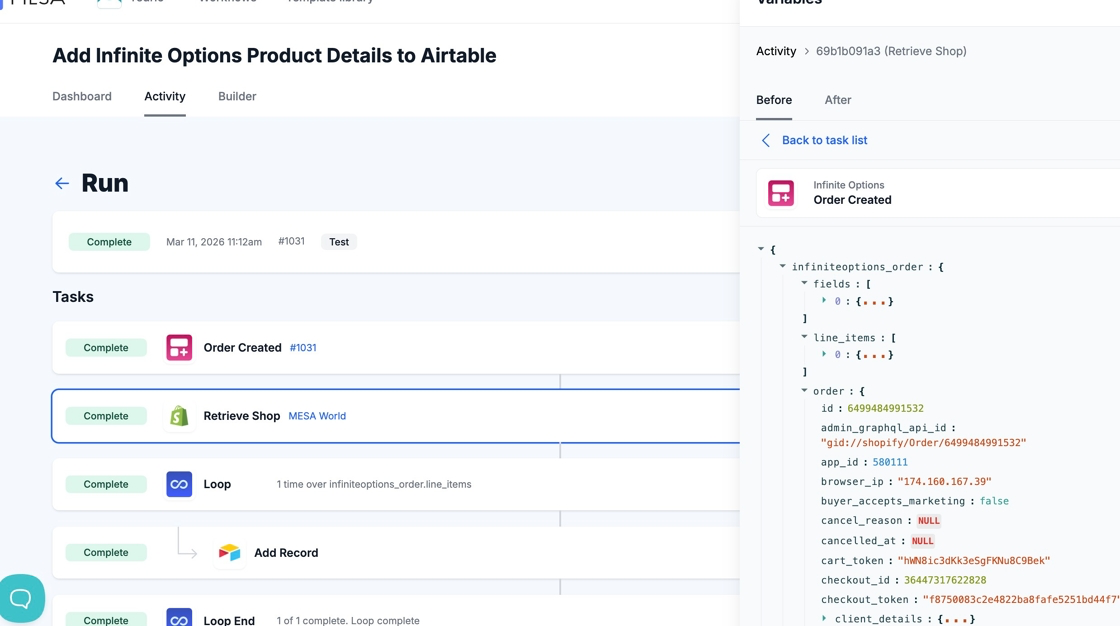
Section titled “Variables”Selecting the Variables option displays the data that was sent to the specific step when it ran and what variables the data offers.
Variables is especially helpful when setting up new automations and testing. This option can assist in identifying the fields of available data in the steps and target the variables that match your end goal.
Expand the details by clicking the arrows in the data to view all the variables available in each listed object.