Thanks.io
Create a private API key in thanks.io under API Access and add it to MESA to send handwritten style postcards from workflows.
Connection
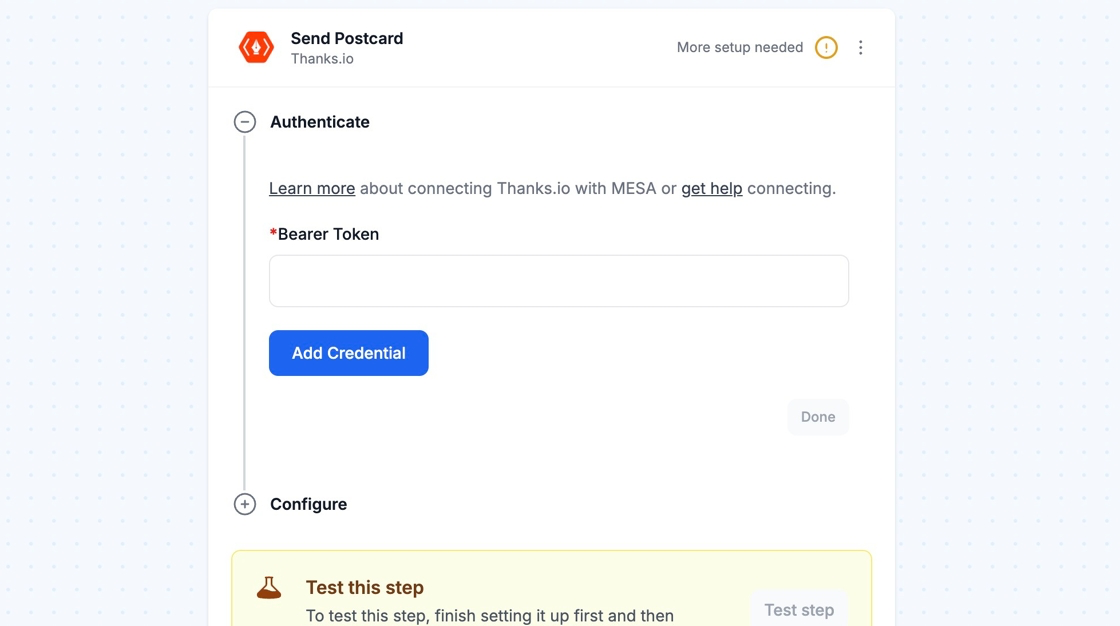
Section titled “Connection”When you’re setting up your first workflow with thanks.io, you’ll need to add your private API key so that thanks.io is a connected app within MESA.
You can create your private API key by clicking Settings (gear icon) > API Access on the thanks.io Dashboard. This link will also take you to where you will find the API key: dashboard.thanks.io/profile/billing
Click on the plus icon on the right hand side, under Personal Access Tokens.
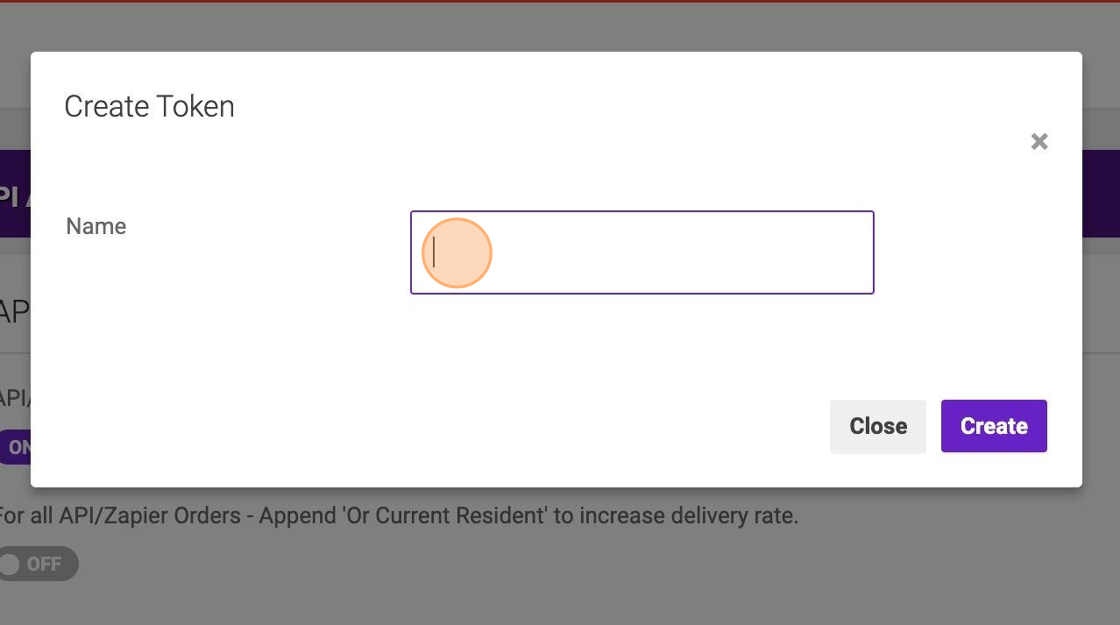
Enter your preferred name of the API Key and click on Create.
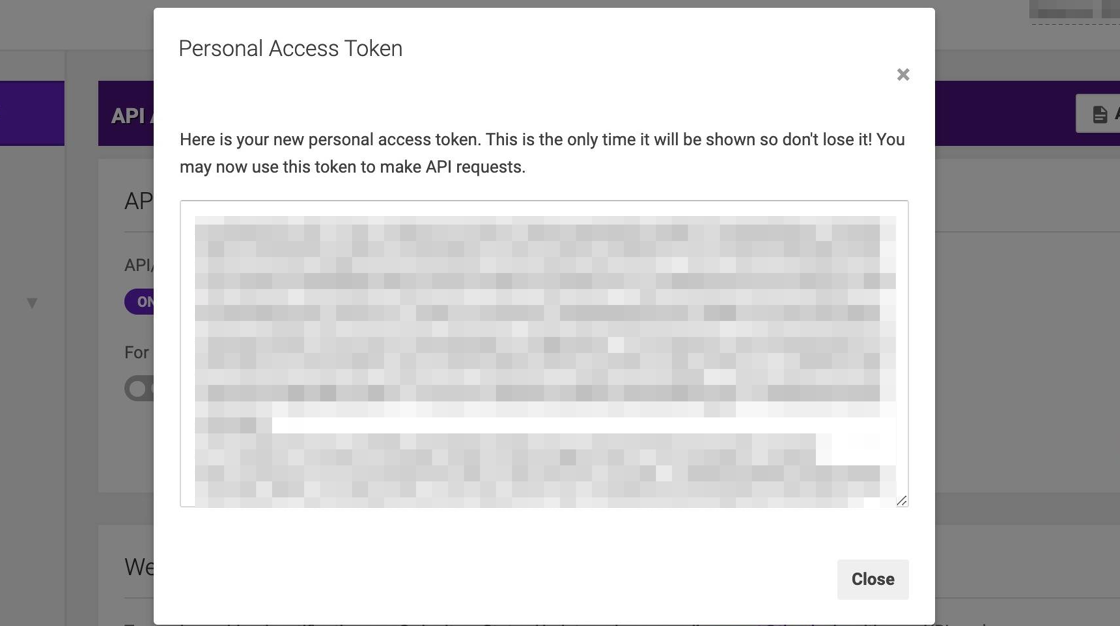
Afterwards, you will be shown your first Personal Access Token. This will be the only time you will be shown the token so make sure to copy everything in the text box. Paste that into your MESA workflow’s thanks.io Connection section. Click on Add Connection and then you are all set!
Technical Notes
Section titled “Technical Notes”Front Image URL
Section titled “Front Image URL”For the Front Image URL field, you will need to copy and paste the image’s URL. This field is required for all Send actions.
Send Letters, Notecards, and Postcards Actions
Section titled “Send Letters, Notecards, and Postcards Actions”In the Letter Send, Notecard Send, and Postcard Send actions, you will need to fill out all the configuration fields listed with a * within the action. If one of the fields is missing a value, your automations will fail.
Return Configuration Fields
Section titled “Return Configuration Fields”In the Letter Send, Notecard Send, and Postcard Send actions, there will be some configuration fields set for a Return address.
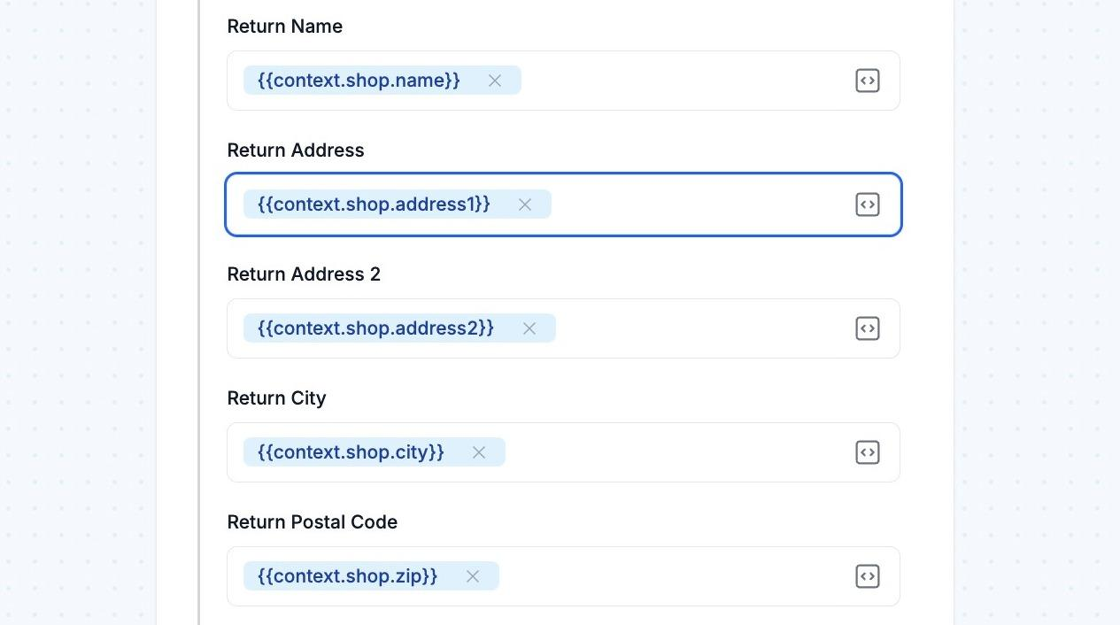
You can copy and paste the following variables if you’d like to set your store’s Store address as the Return address for the letters, notecards, or postcards. You can locate and edit your Store address by clicking here.
Return Name
Section titled “Return Name”{{context.shop.name}}Return Address
Section titled “Return Address”{{context.shop.address1}}Return Address 2
Section titled “Return Address 2”{{context.shop.address2}}Return City
Section titled “Return City”{{context.shop.city}}Return Province
Section titled “Return Province”{{context.shop.province}}Return Postal Code
Section titled “Return Postal Code”{{context.shop.zip}}