
Rivo
Copy your Rivo API key from the Developer Toolkit in settings and add it to MESA to manage loyalty and referral data in workflows.
Connection
Section titled “Connection”When you’re setting up your first workflow with Rivo, you’ll need a Rivo API Key.
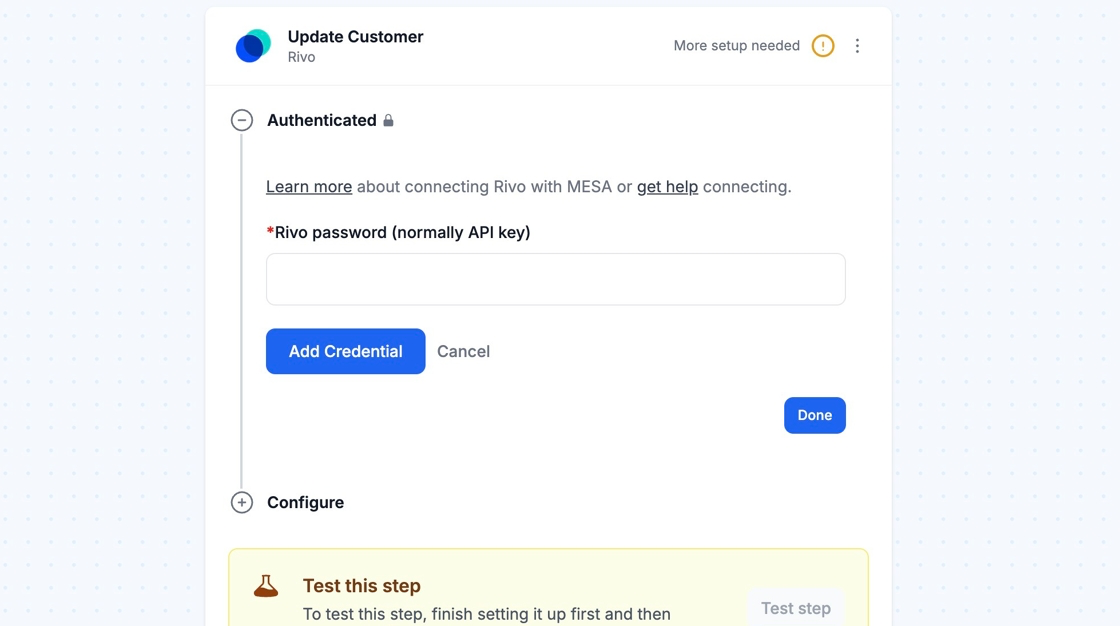
1. To get your API Key, go to the Rivo: Loyalty & Referrals app. Once there, click on Settings.
2. Under Settings, click on Developer Toolkit.\
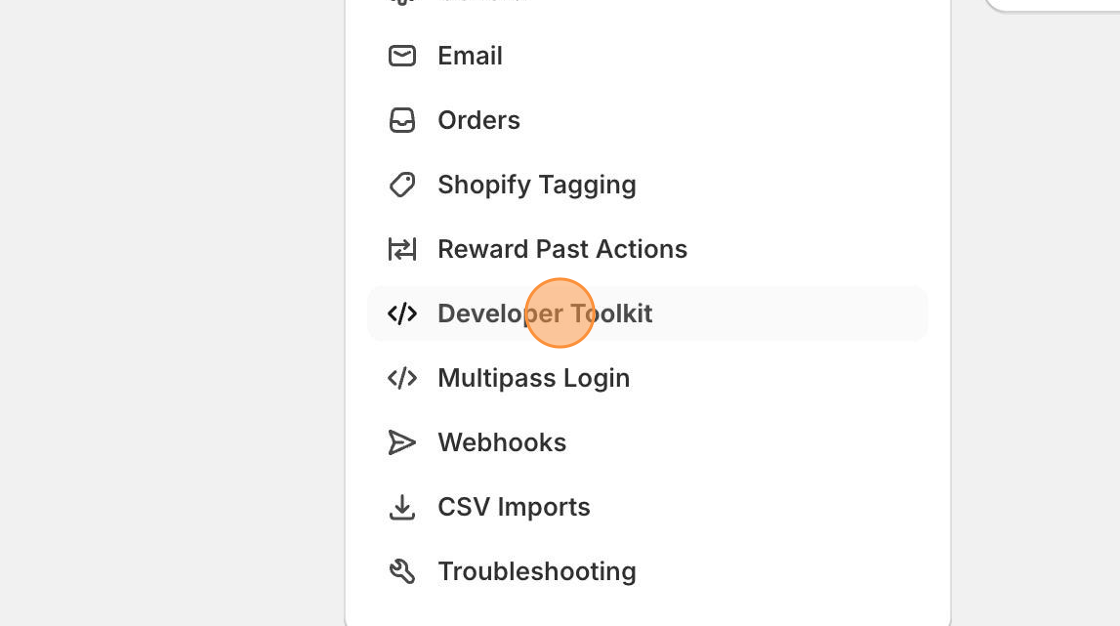
3. Then, click on the Copy button next to the API Key.
4. Back in MESA, paste the copied values into MESA’s Rivo Account Connections Rivo password field. Click on Add Connection and then you are all set!
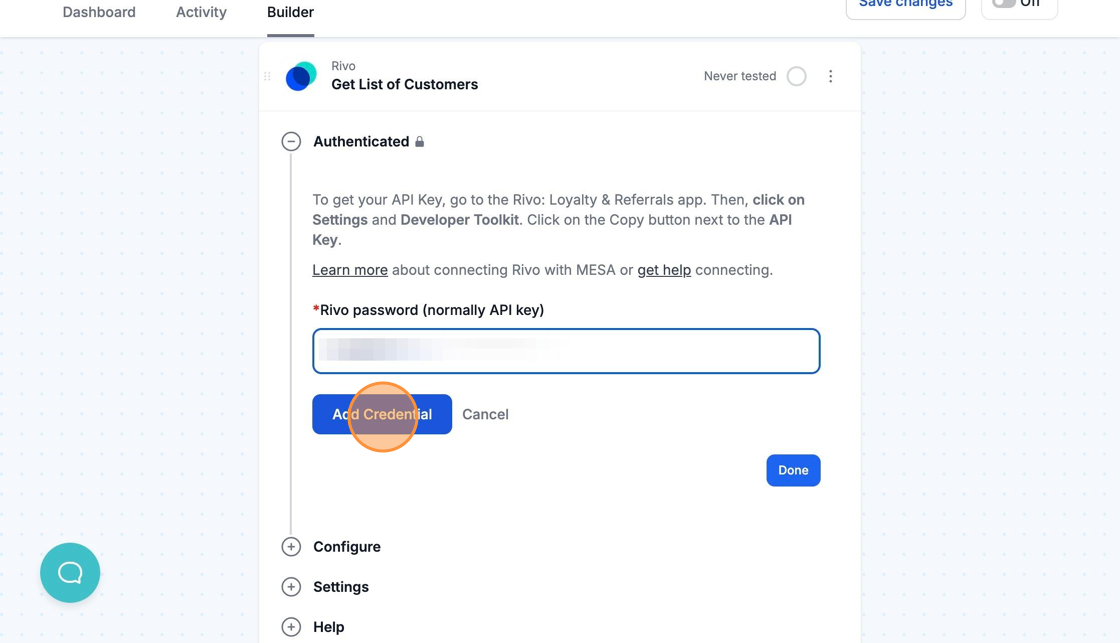
MESA is now connected with Rivo.