
Delighted
Find your Delighted API key under Integrations in the dashboard and add it to MESA to send survey events from your workflows.
Connection
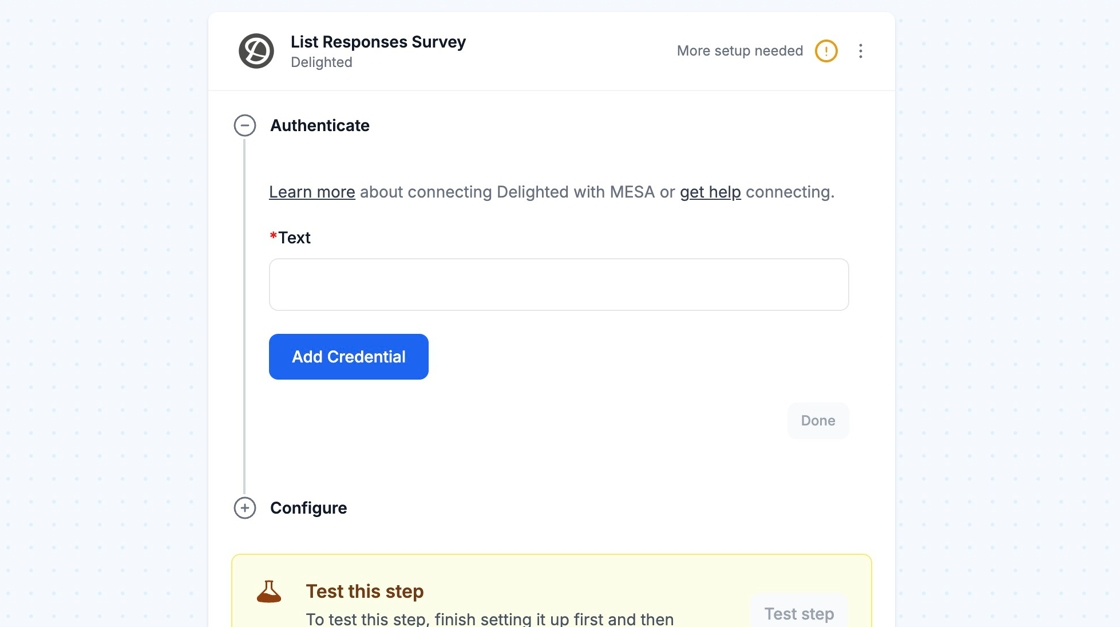
Section titled “Connection”When you’re setting up your first workflow with Delighted, you’ll need to add your API key so that Delighted is a connected app within MESA.
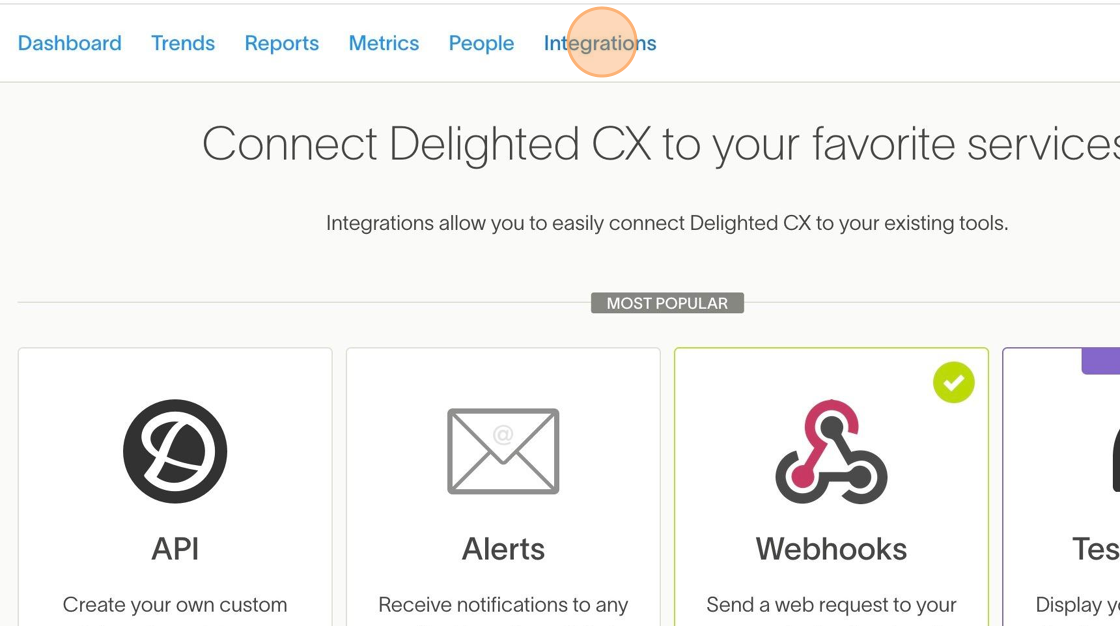
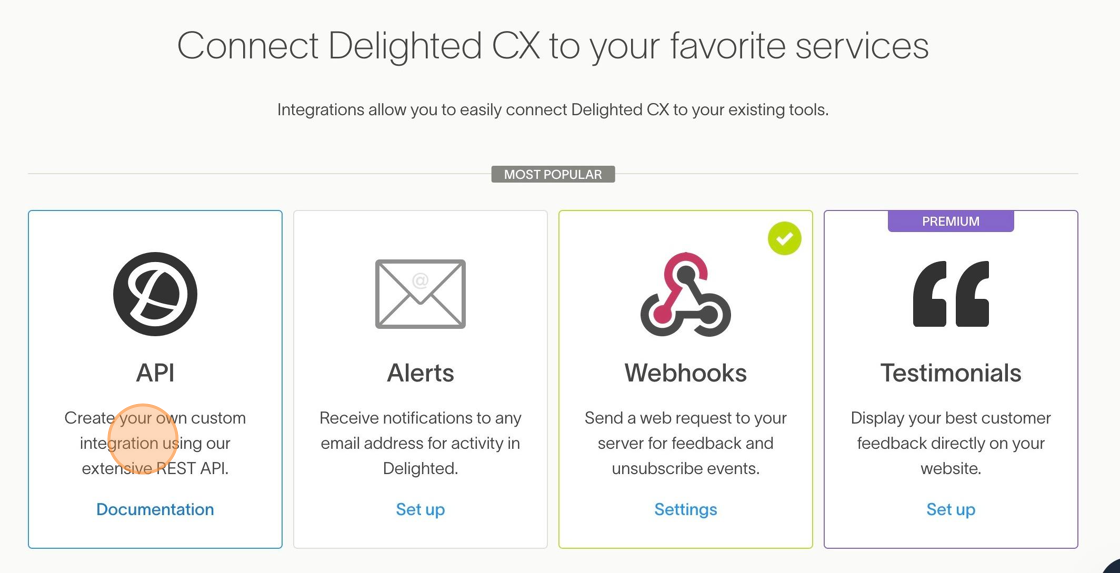
You can locate your API key by clicking Integrations on the Delighted Dashboard. Then, locate API and click on it.
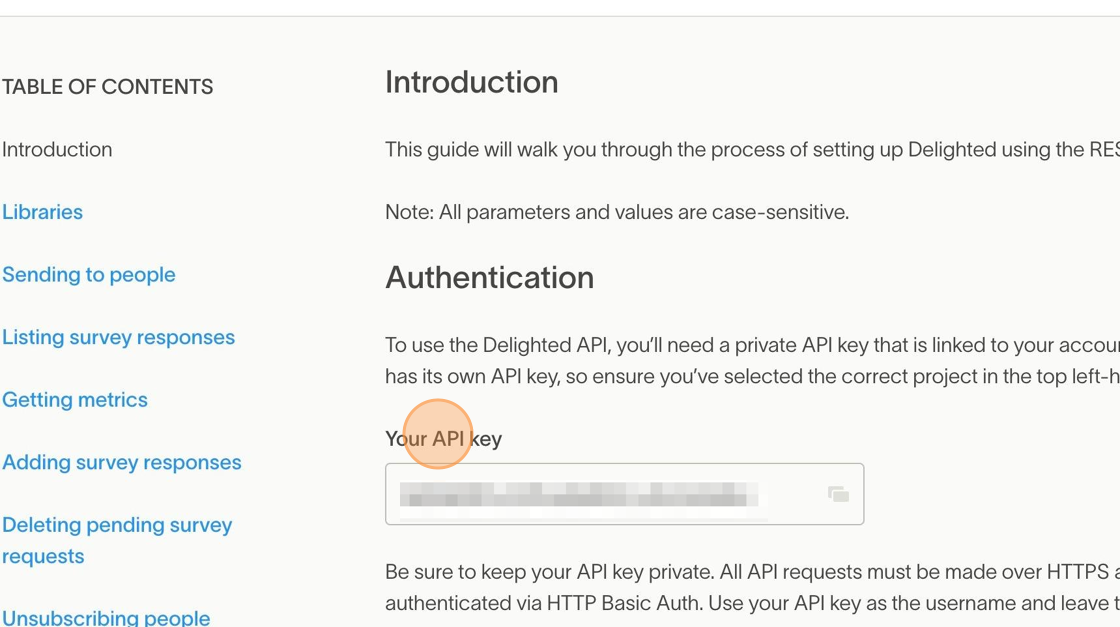
You will find the API key under Your API key header. Copy and paste that into your workflow and create a Delighted Connection.
Configure
Section titled “Configure”
Delighted Triggers
Section titled “Delighted Triggers”When starting a workflow with a Delighted Trigger, MESA will require you to create a Webhook before the workflow works successfully.
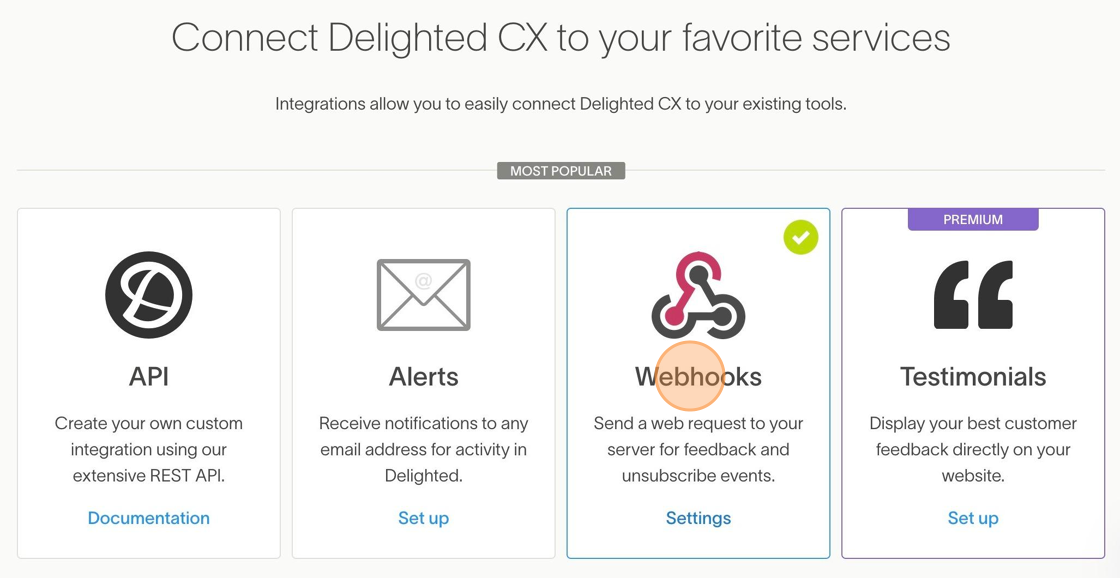
1. To create a Webhook, you can click Integrations on the Delighted Dashboard. Then, locate Webhooks and click on it.
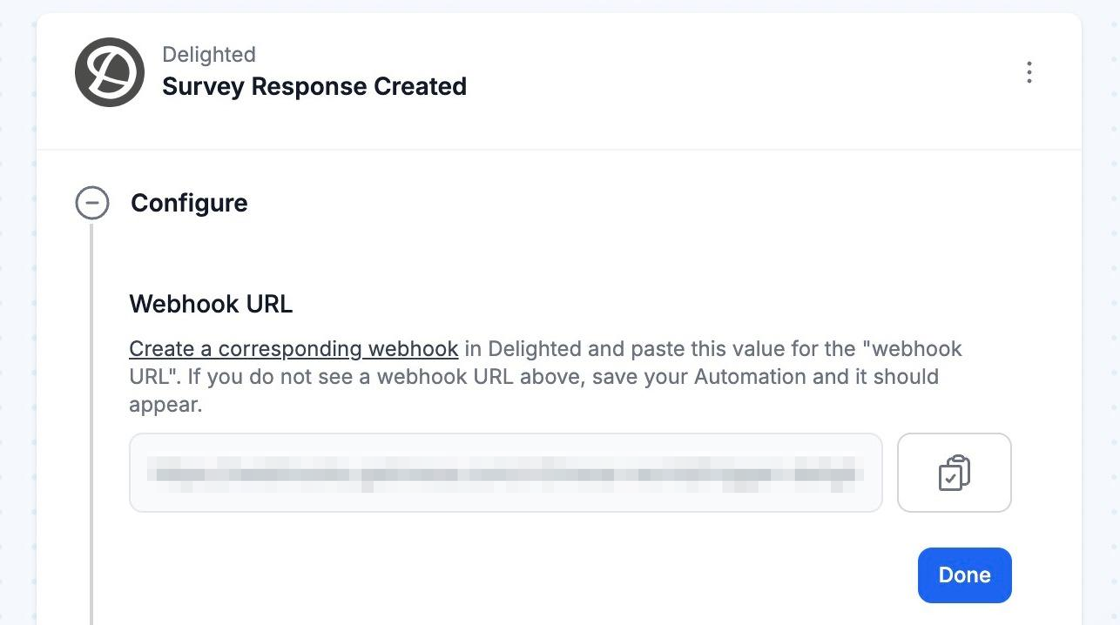
2. From your MESA workflow, copy the Webhook URL seen in the field (save the workflow if you do not see an URL in the field and refresh the page). Paste the URL into the textbox on the screen.
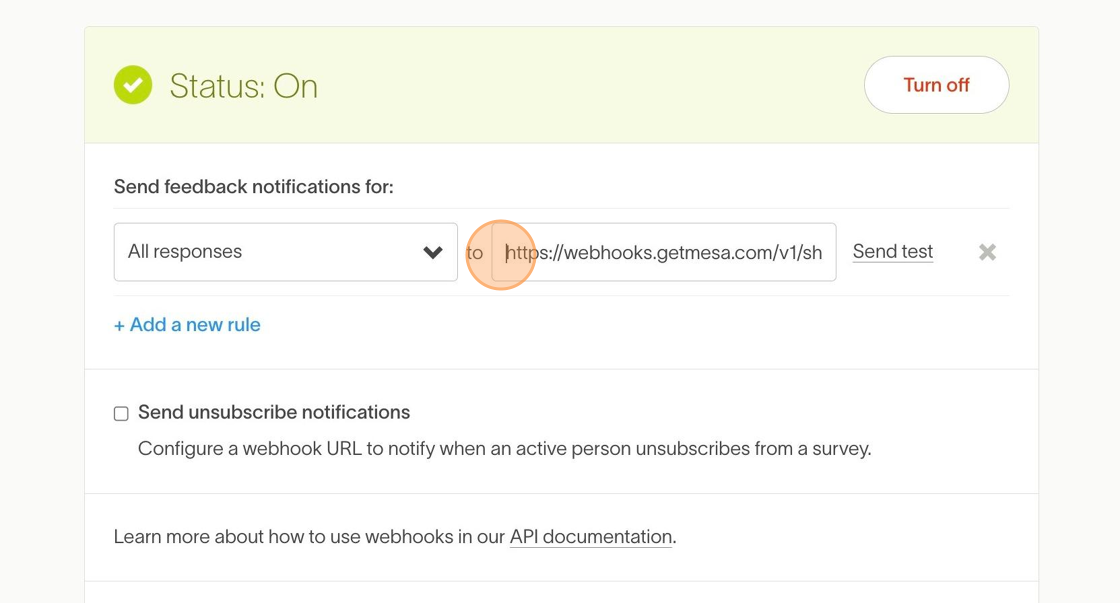
3. **Optional Settings:**For response notifications: Set the specifications of the webhook rule (like “promoters only”)For unsubscribe notifications: Select Send unsubscribe notifications. Click Save & turn on.
Delighted Get & List Actions
Section titled “Delighted Get & List Actions”Delighted has several actions that can retrieve or list out items like surveys, people, and etc.
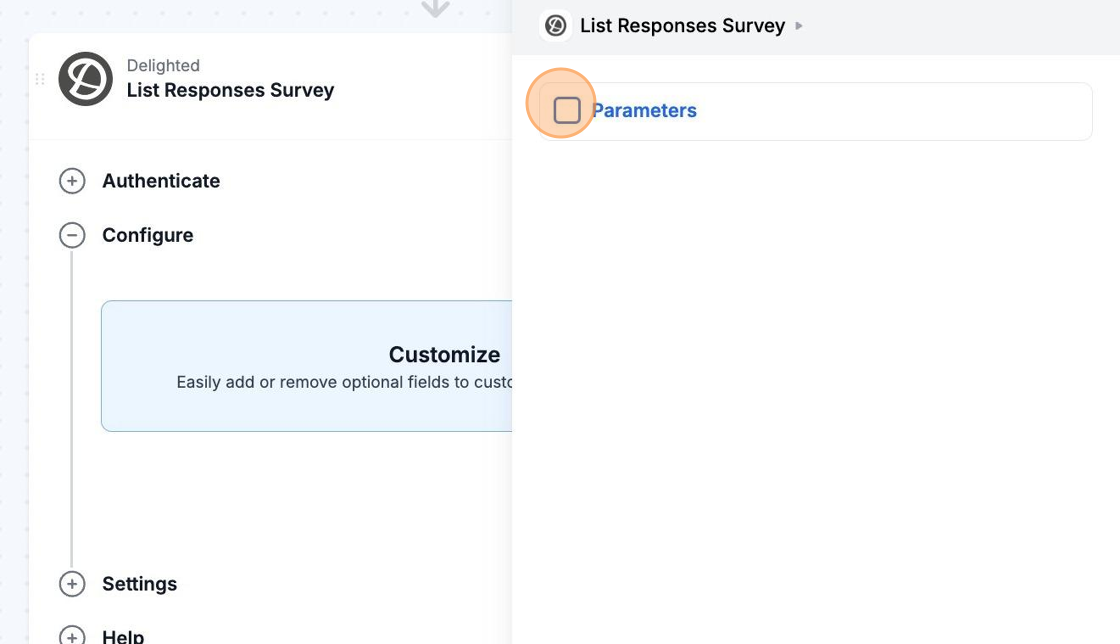
In order to retrieve a specific list of things, you will need to use our Parameters option. If you want to list out all things, you can leave the parameter option unselected.
Parameters are what helps MESA request for specific information.
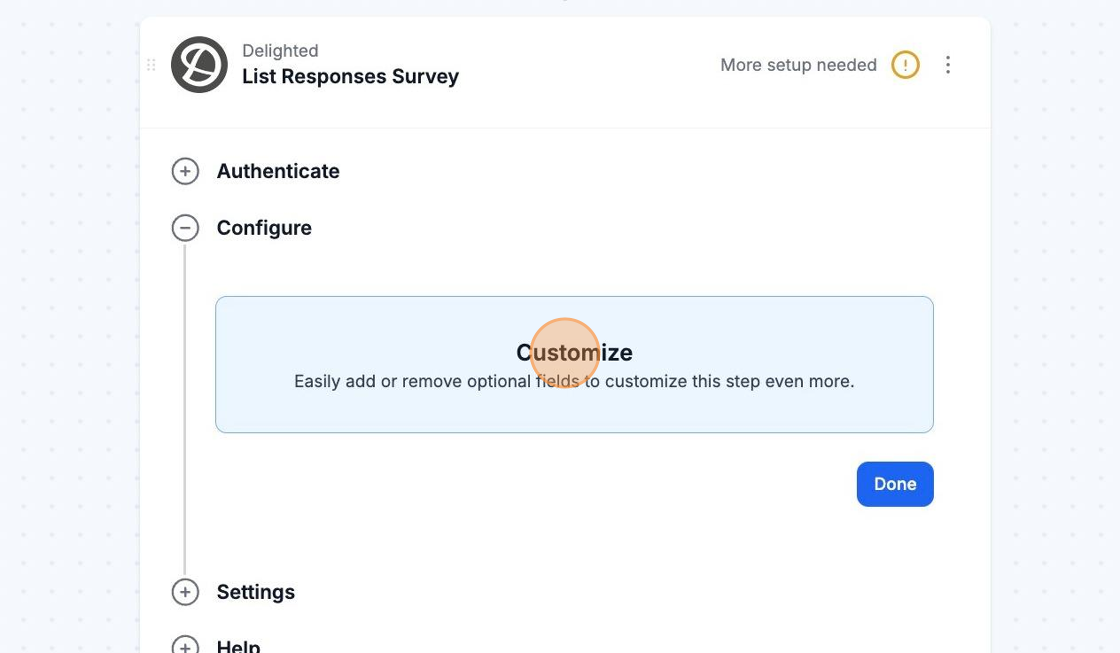
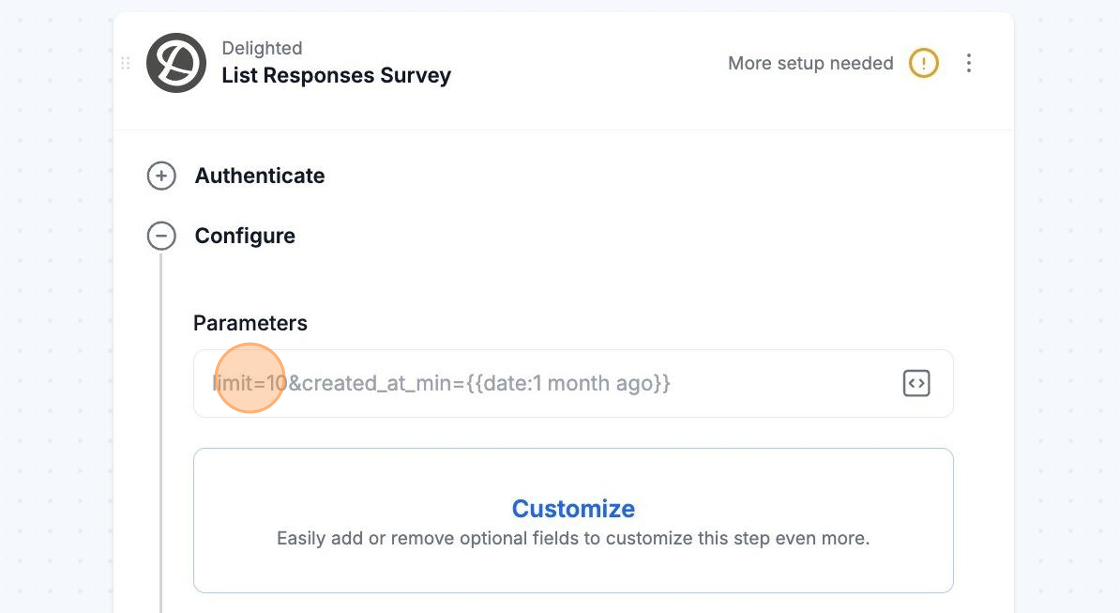
To use multiple parameters, you will want to add a “&” symbol between multiple parameters. You can also use variables in the parameters.
If you are not sure what parameter to add, you can check the Delighted API documentation.