Remove.bg
Connect Remove.bg to MESA with its app and your account, then add a step that removes the background from product images.
Connect Remove.bg with MESA
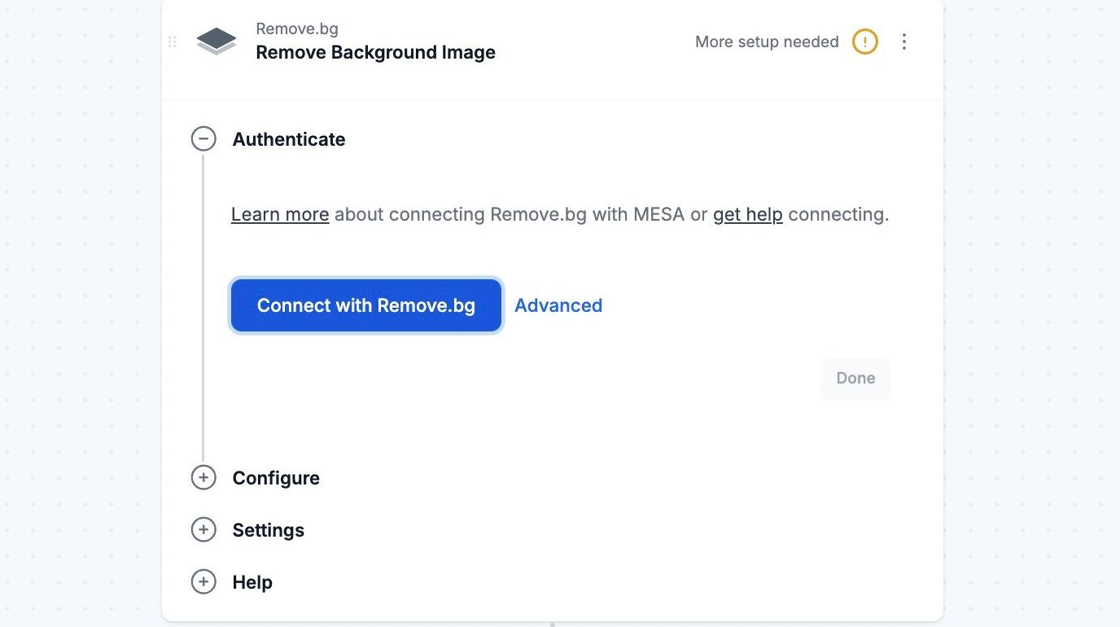
Section titled “Connect Remove.bg with MESA”When you’re setting up your first workflow with Remove.bg, you will need to create a connection through MESA’s Remove.bg App or your own custom Google App. Click on the Connect with Remove.bg button to finish the process.
On the next screen, login into your Kaleido Account or create your own account.
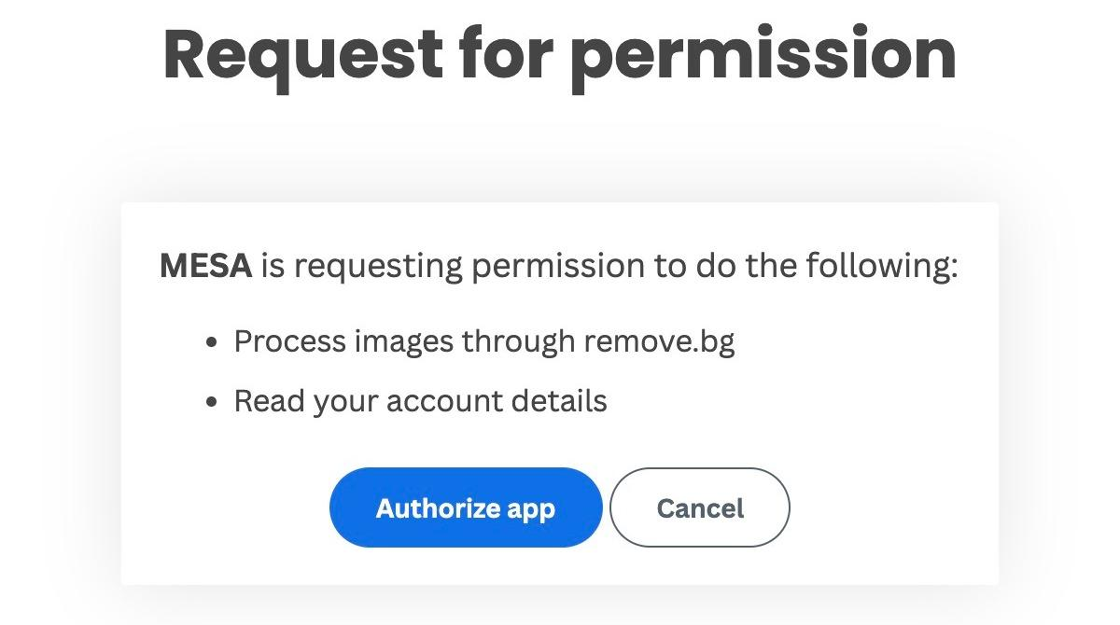
Afterwards, click on the Authorize app button from the Permissions page.
You will be brought back to your current workflow and you are all set! MESA is now connected with your Remove.bg account.
Configuration
Section titled “Configuration”
Sending an image URL to Remove.bg
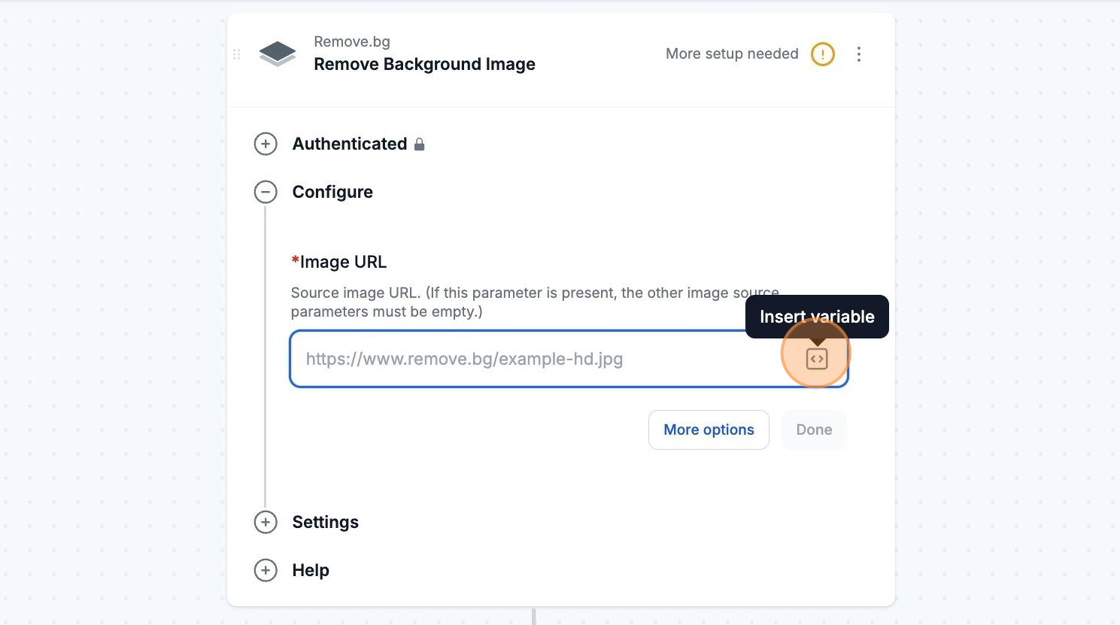
Section titled “Sending an image URL to Remove.bg”If you have an image URL, you can input the image URL into the Image URL field.
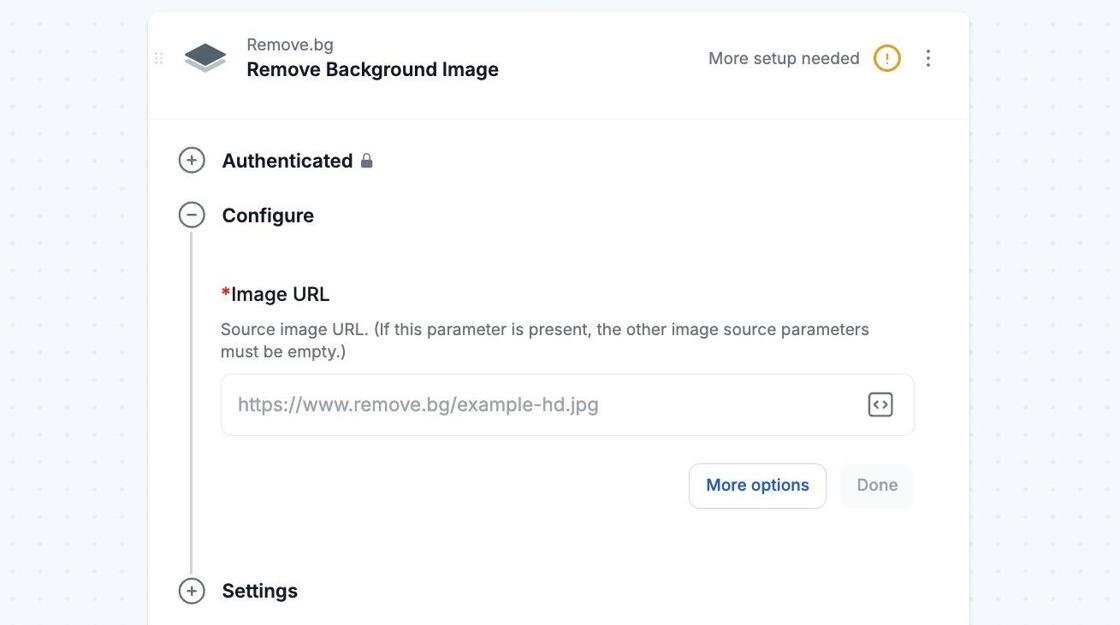
You can also use MESA’s variables in the Image URL field. For example, if you currently use Uploadery by ShopPad, you can create a workflow that removes all background images from every Uploadery file included in a Shopify customer’s order: Uploadery Order Created Trigger -> Loop -> Remove.bg Remove Background Image step.
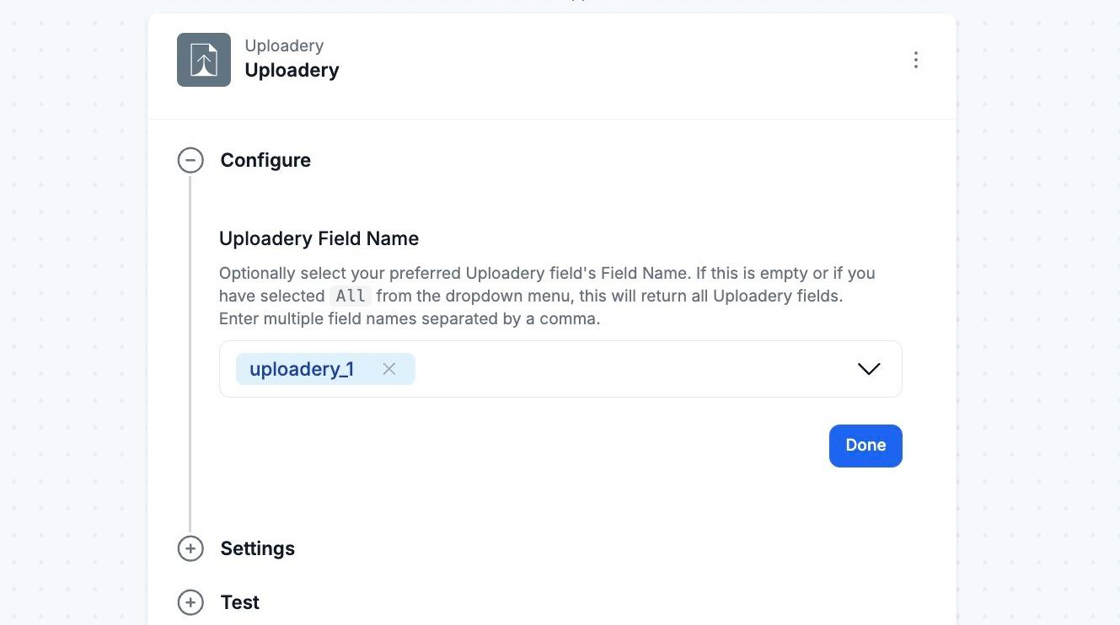
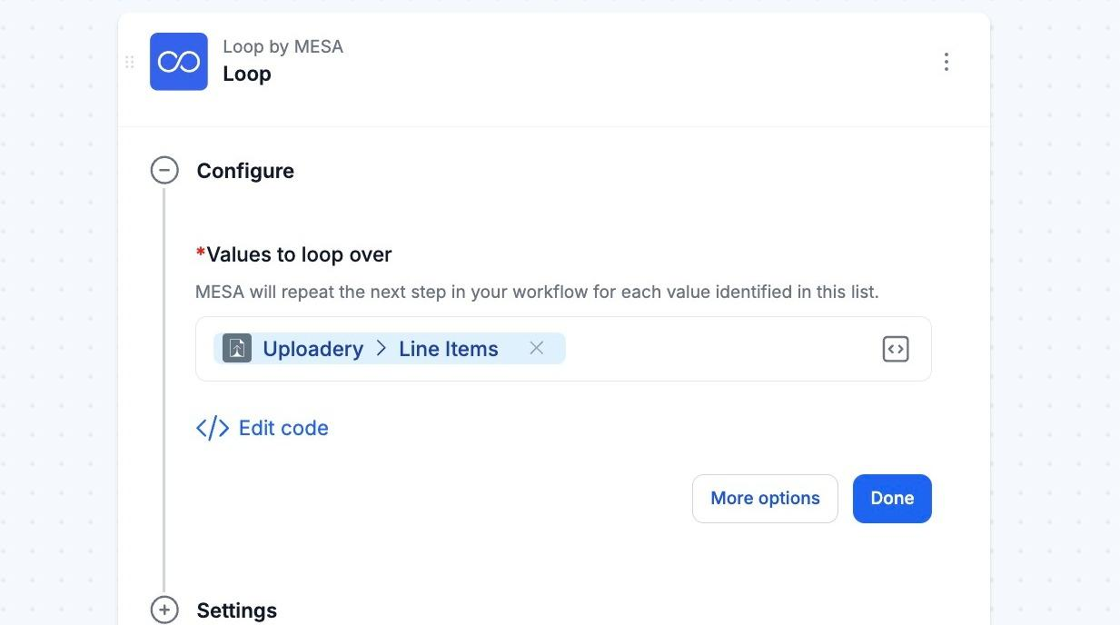
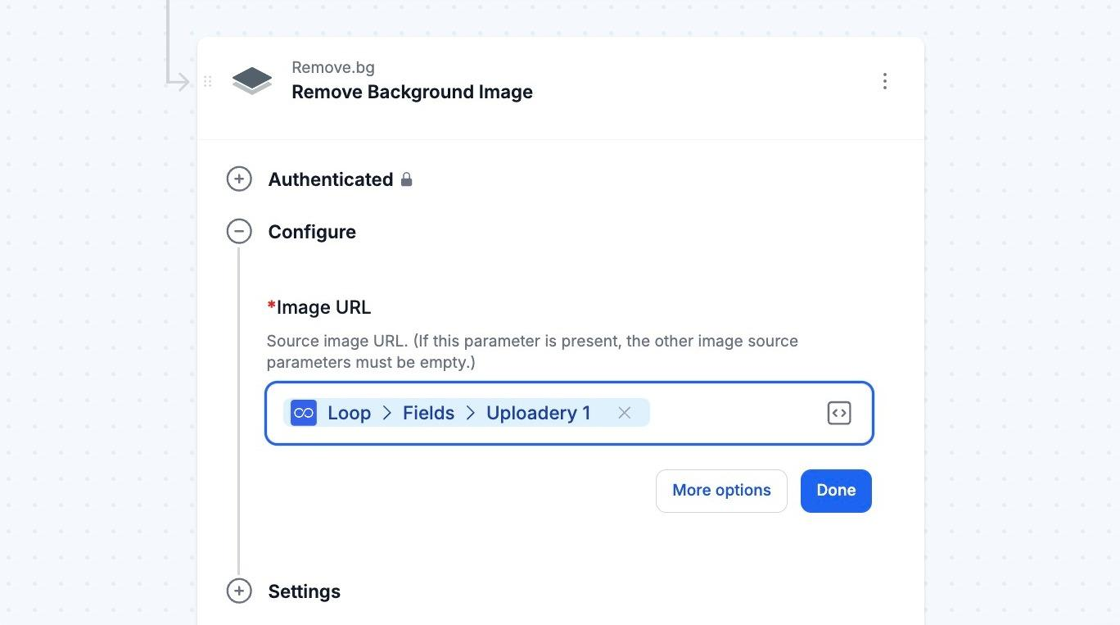
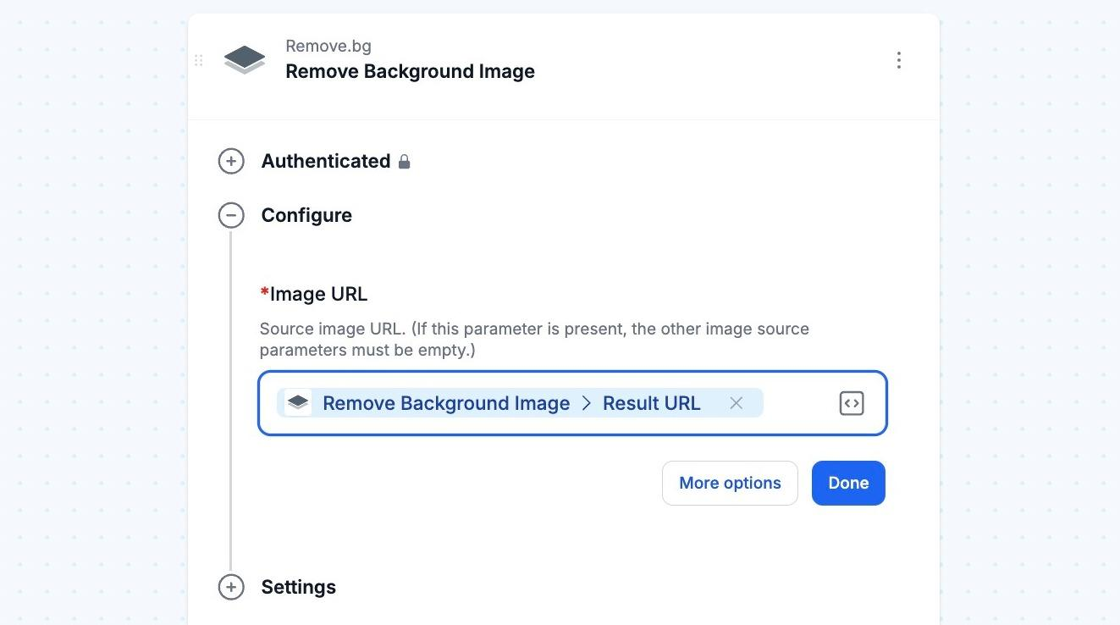
Using Remove.bg’s edited image
Section titled “Using Remove.bg’s edited image”You can use MESA’s Variables feature to use Remove.bg’s edited image in a later step in your workflow. The Result URL variable will contain the image with no background.