
Katana
Connect Katana inventory software to MESA by adding your account and authorizing access, so workflows can sync orders and stock.
Connection
Section titled “Connection”When you’re setting up your first workflow with Katana, you will need to connect Katana with MESA as a connection. Click Add Account, then select Connect with Katana.
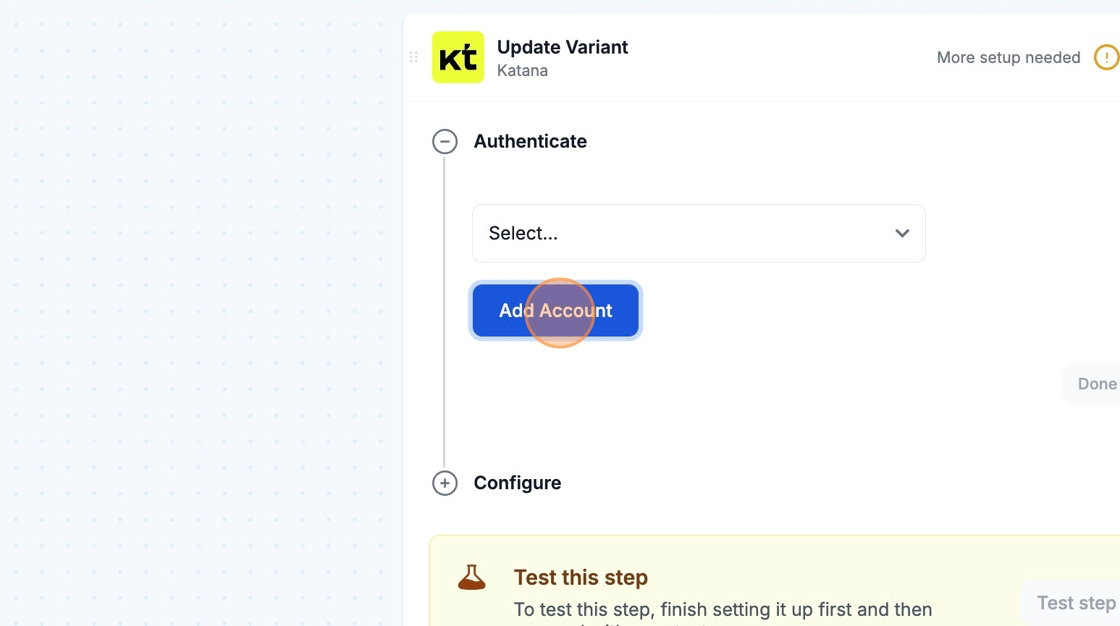
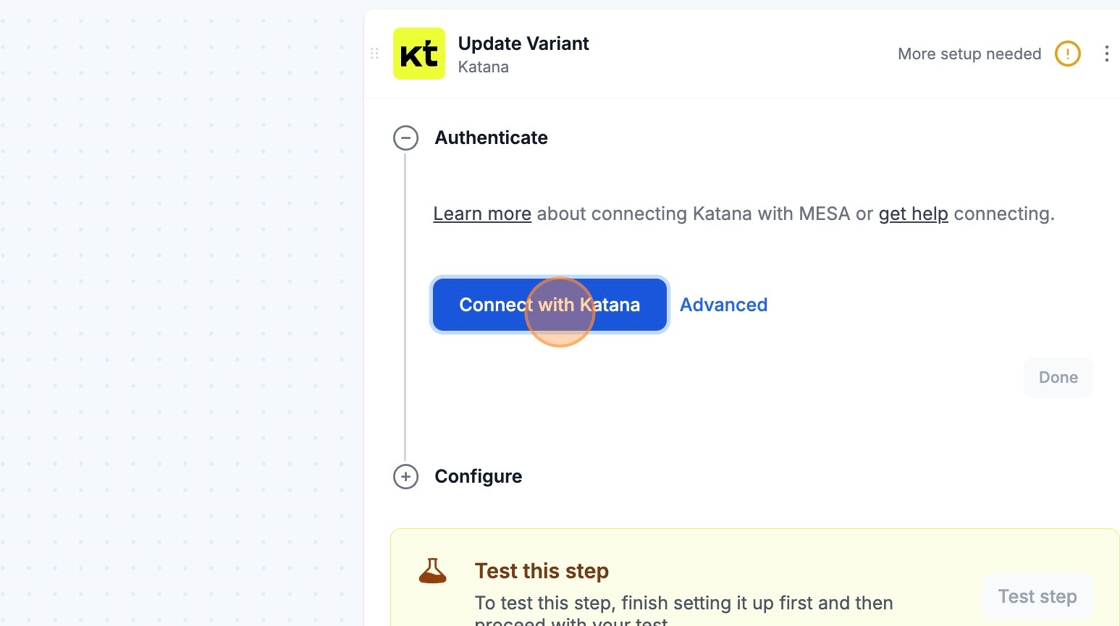
You may be asked to login into your Katana account if not already logged in. Please make sure to login to your Katana account before clicking on Connect with Katana. Once logged in, you can continue with the connection process.
Afterwards, you will be brought back to your current workflow and you are all set! MESA is now connected with your Katana account.