
Recharge
Enter your Recharge subdomain and sign in to connect Recharge to MESA, then automate subscription workflows from your store.
Connection
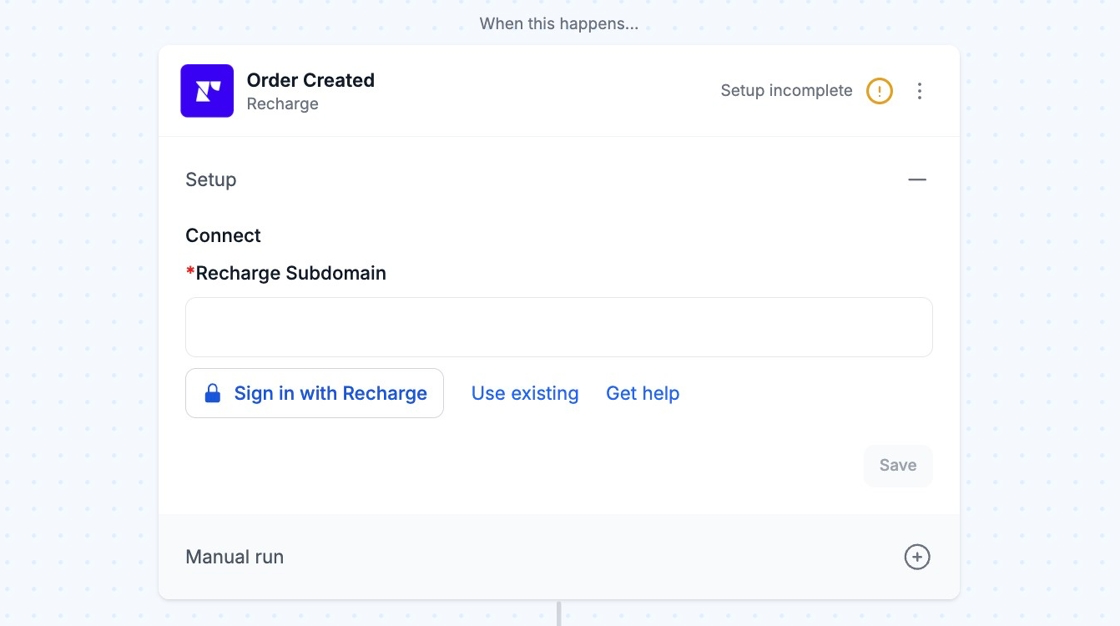
Section titled “Connection”When setting up your first workflow with Recharge, you will need to create a connection through MESA’s Recharge connector. Enter your subdomain in the Recharge Subdomain field and click the Sign in with Recharge button to complete the process.
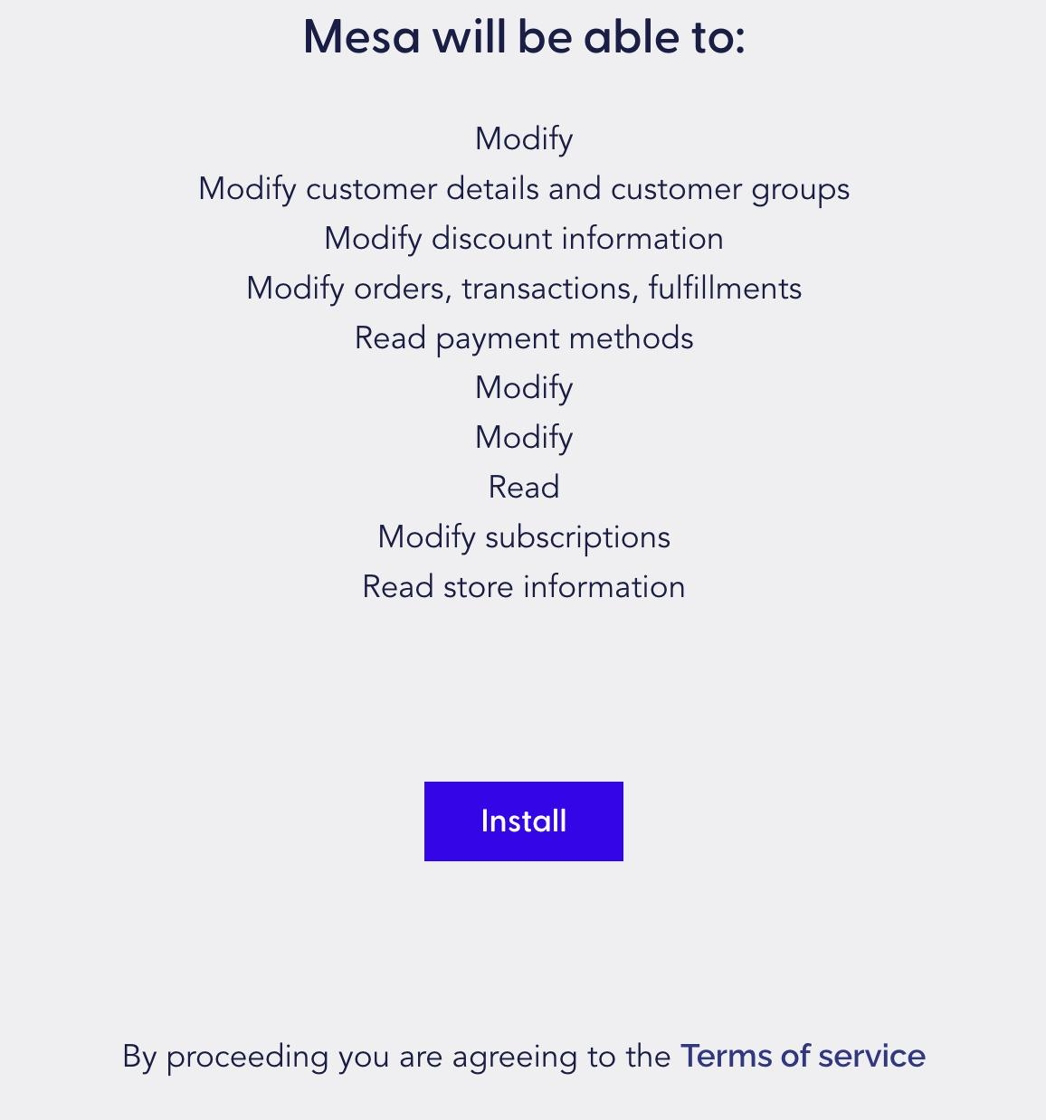
Once redirected, scroll until you see a blue Install button and click on it.
Configure
Section titled “Configure”Getting Shopify Data from Recharge Actions
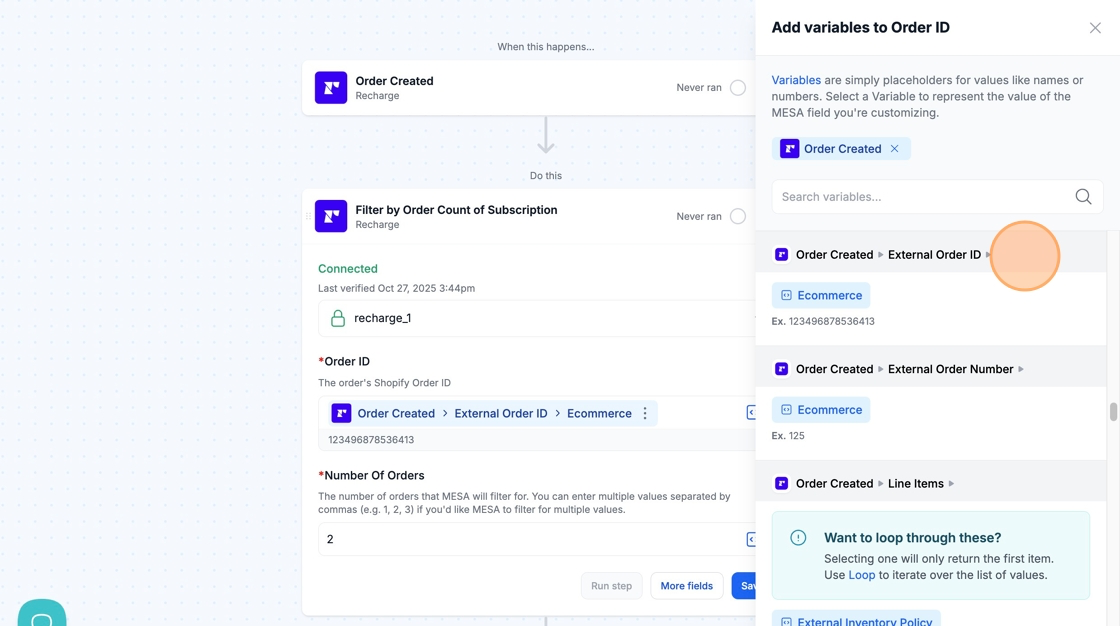
Section titled “Getting Shopify Data from Recharge Actions”Recharge has its own system for identifying orders, customers, and products. To reference Shopify orders, customers, or products within a Recharge action, you must use the “external ecommerce” variables.
For example, select the “Recharge > External Order ID > Ecommerce” variable to get the Shopify data for a Recharge order.
Orders Count
Section titled “Orders Count”When using the Orders Count action, be sure to add a Filter step afterward to ensure the comparison conditions for the total number of orders meet your desired criteria.
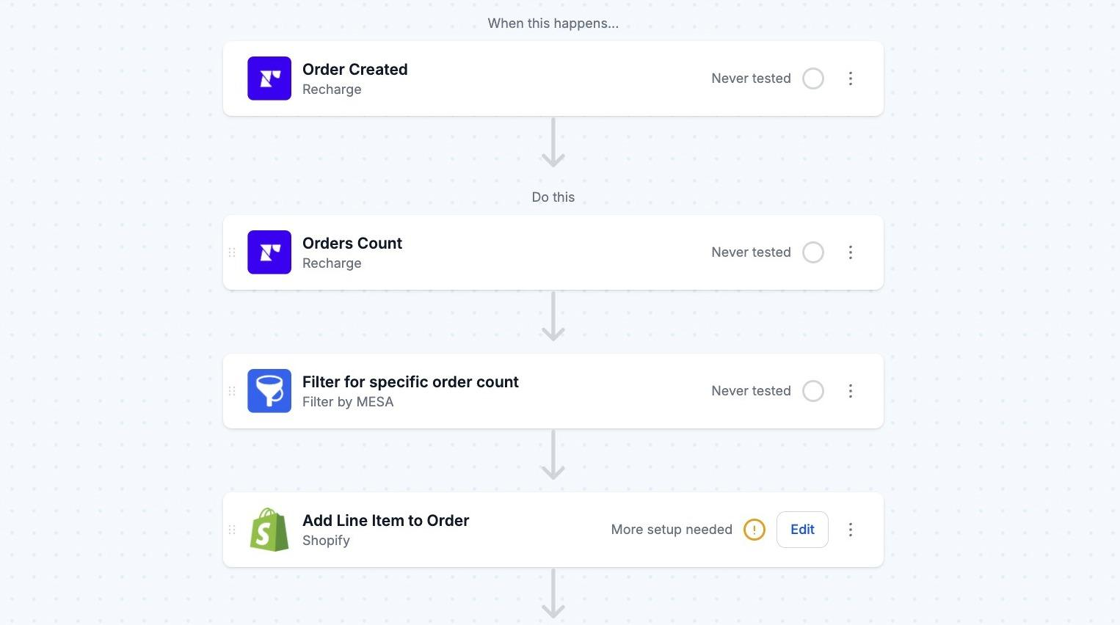
The Orders Count action receives the total number of orders placed by a customer’s email address.