
Custom Code
Write JavaScript in the MESA Custom Code tool to add complex logic, build integrations with third-party services and handle cases built-in tools cannot.
The Custom Code tool allows you to add complex logic to a workflow that might otherwise be difficult with MESA’s built-in tools. You can create custom integrations to third-party services, even those that MESA does not yet integrate, and code custom business logic using JavaScript.
Configure
Section titled “Configure”To open the code editor
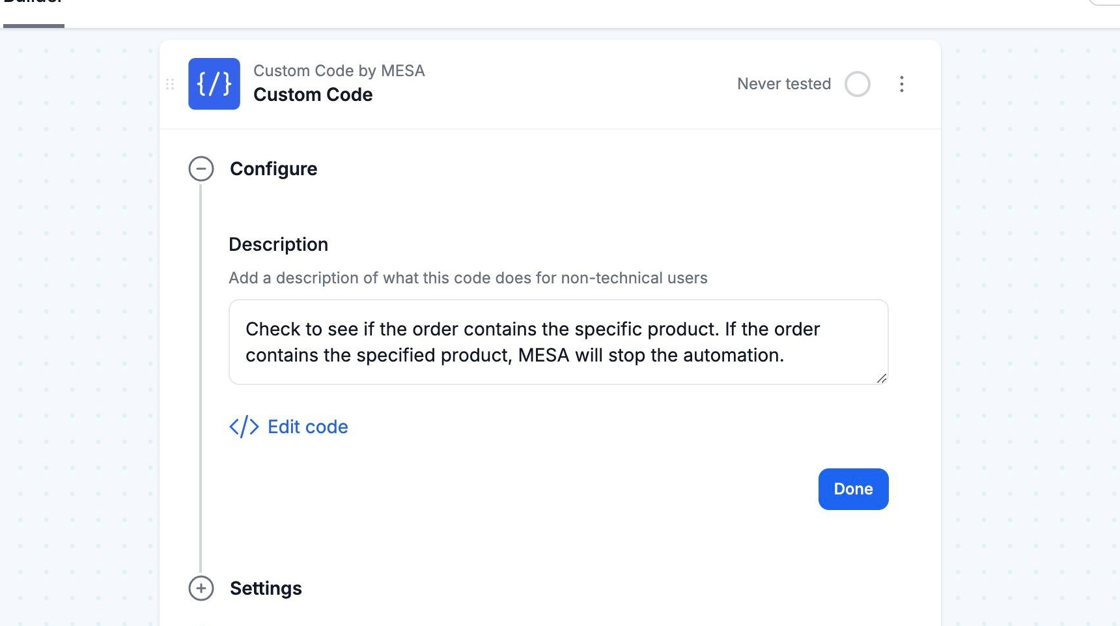
Section titled “To open the code editor”Click the </> Edit Code button to edit your custom code.
Anatomy of a Custom Code step
Section titled “Anatomy of a Custom Code step”const Mesa = require('vendor/Mesa.js');
/** * A MESA Script exports a class with a script() method. */module.exports = new class {
/** * MESA Script * * @param {object} prevResponse The response from the previous step * @param {object} context Additional context about this task */ script = (prevResponse, context) => {
// Retrieve the Variables Available to this step const vars = context.steps;
// Add your custom code here let response = {}
// Call the next step in this workflow // response will be the Variables Available from this step Mesa.output.next(response); }
}Code is executed in a V8 environment and can be written in standard JavaScript or ES6. When this step is run, the script() method will be called with two parameters: prevResponse and context. In order for your workflow to continue its subsequent steps, be sure to include a call to Mesa.output.next(response); somewhere within your script() method.
Thecontext object
Section titled “Thecontext object”| Property | Type | Description |
|---|---|---|
| steps | Object | An object containing the variables for each step that has been run so far, named with the step's unique key. For example, to access a step with a key of "shopify" use: |
| trigger | Trigger | This object is the configuration of the current step being run. |
| task | Task | This object is information about the current task's execution. |
TheTrigger object
Section titled “TheTrigger object”| Property | Type | Description |
|---|---|---|
| metadata | Object | The values entered in configuration fields, with variable replacements. |
| raw_metadata | Object | The values entered in configuration fields, without variable replacements. |
| fields | Object | An object of the configuration fields from the UI. |
TheTask object
Section titled “TheTask object”| Property | Type | Description |
|---|---|---|
| context.headers | Object | A key-value object of the HTTP headers passed to this task. |
| is_test | Object | Is the current task being run as a test? |
Using Libraries
Section titled “Using Libraries”Libraries offer built-in functionality that extends the power of your code. The MESA SDK library is included by default and other libraries can be imported as needed.
Going Further
Section titled “Going Further”Logging information
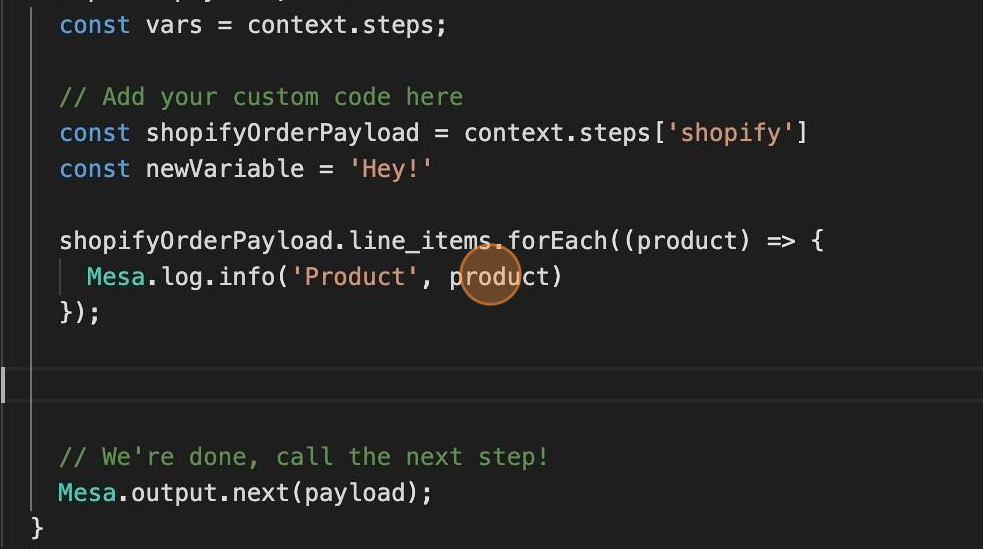
Section titled “Logging information”To debug your script, it can be helpful to log data at a particular step in your code. This can be done by calling Mesa.log.info(). This is equivalent to console.log() in browser-based JavaScript. When the workflow runs, the info will be available in your workflow’s Logs tab.
Throwing errors
Section titled “Throwing errors”Throw a JavaScript error to halt the execution of your workflow:
throw new Error("your error description")In the User Interface, this will look like:

Interacting with external APIs
Section titled “Interacting with external APIs”Use Mesa.request.get() to make HTTP requests to external APIs. This is the equivalent to fetch() in browser-based JavaScript.
Technical Notes
Section titled “Technical Notes”Timezones
Section titled “Timezones”All system timezones use your Shopify Store’s timezone. You can view and update your timezone from the Shopify Dashboard: Admin > Settings > General, under “Standards and formats”. If you need to get dates in a different timezone, use the Mesa.date.setTimezone(timezone) method.
Unsupported NodeJS methods
Section titled “Unsupported NodeJS methods”Scripts are run in a stock V8 environment. This means that some common NodeJS methods are not available:
request(): Alternative:Mesa.request.*()Documentation.console.log(): Alternative:Mesa.log.*()Documentation.asyncorawait: AllMesa.request.*()methods are synchronous, soasyncandawaitare not necessary.- DOM manipulation methods: Alternative:
Mesa.xml.decode()Documentation.